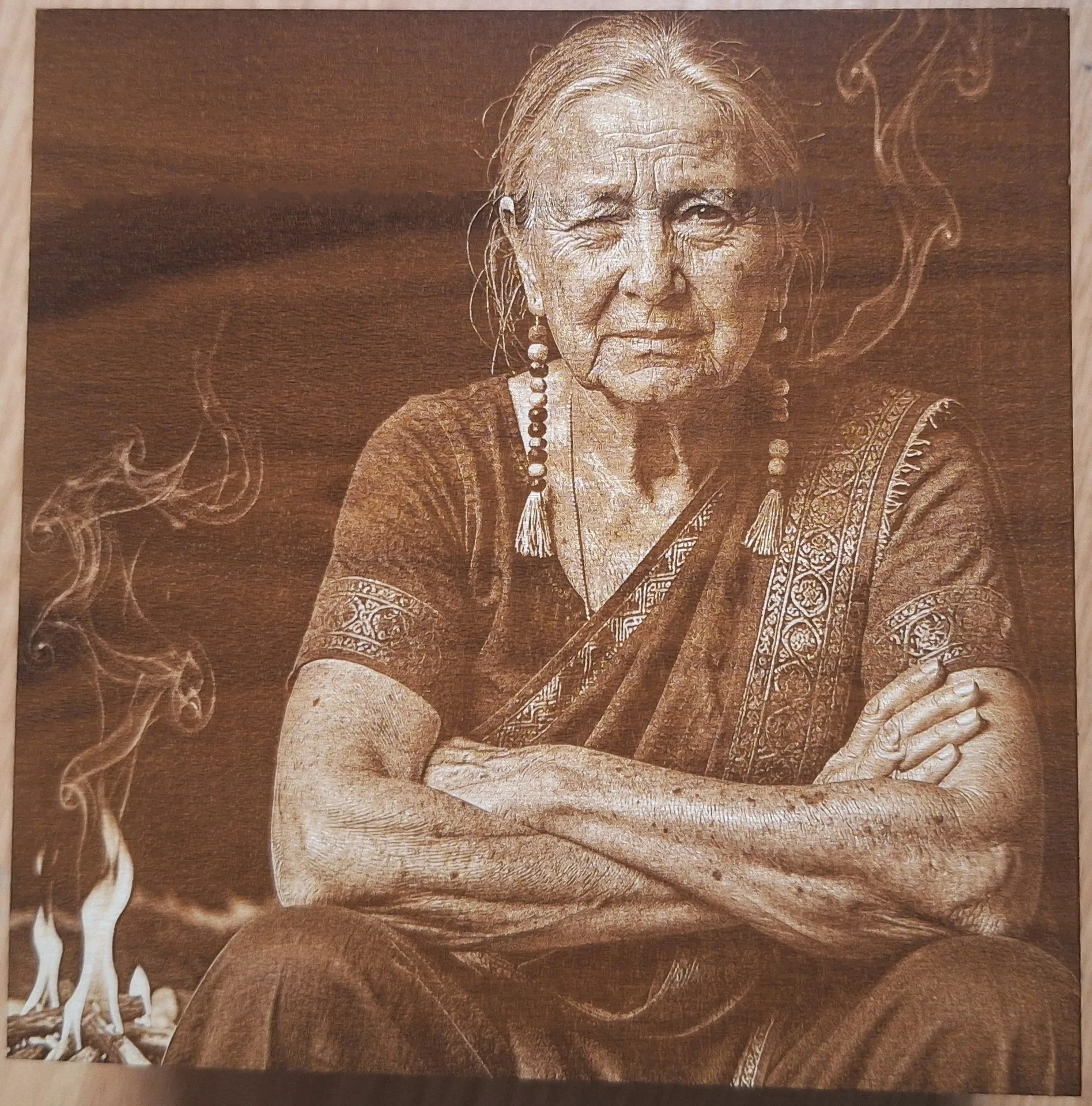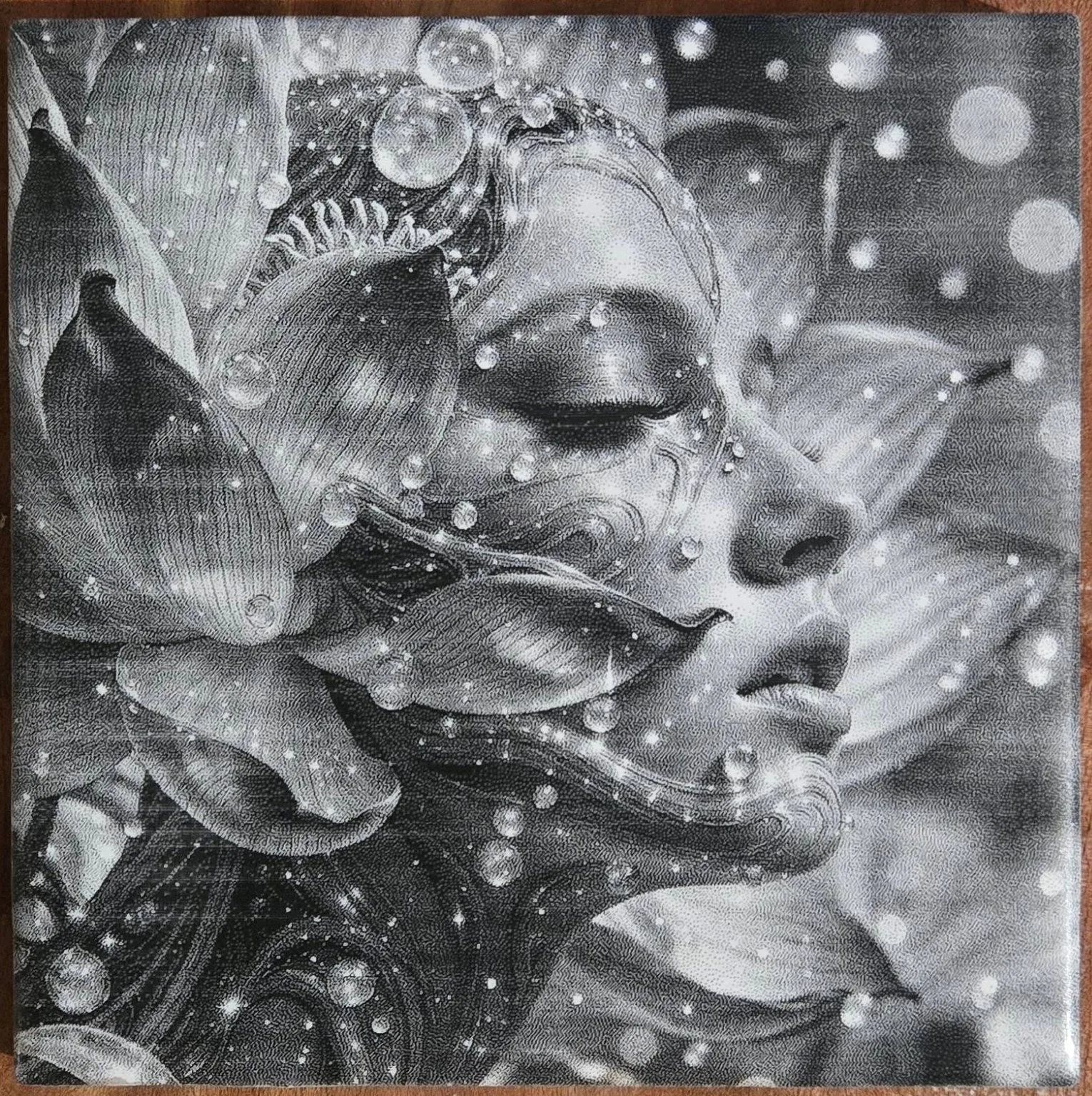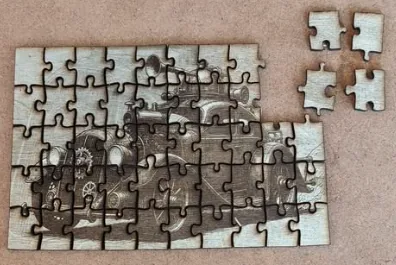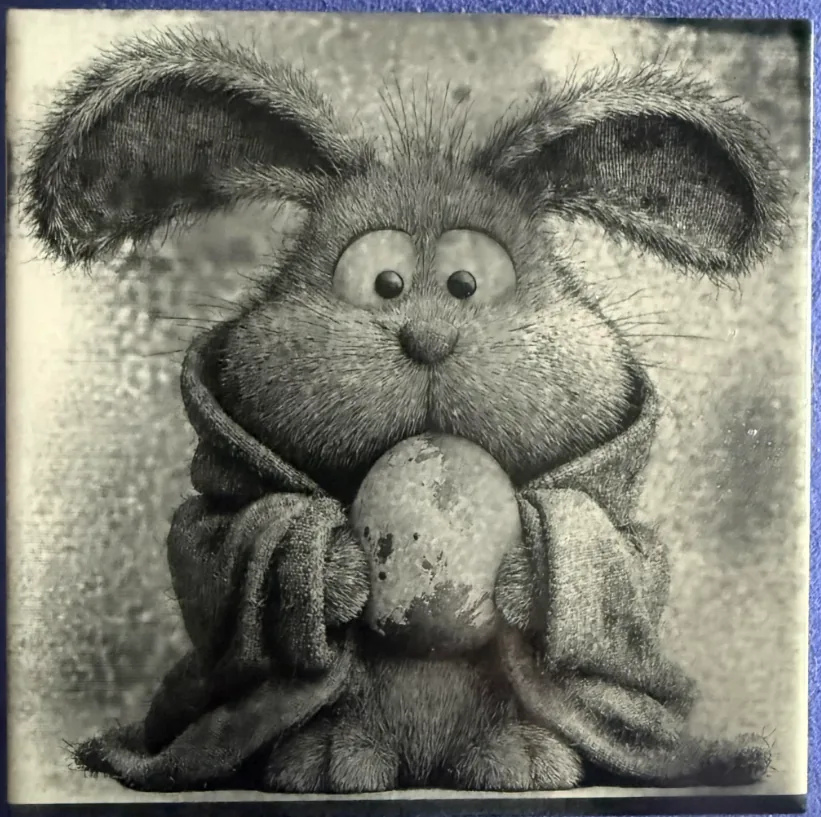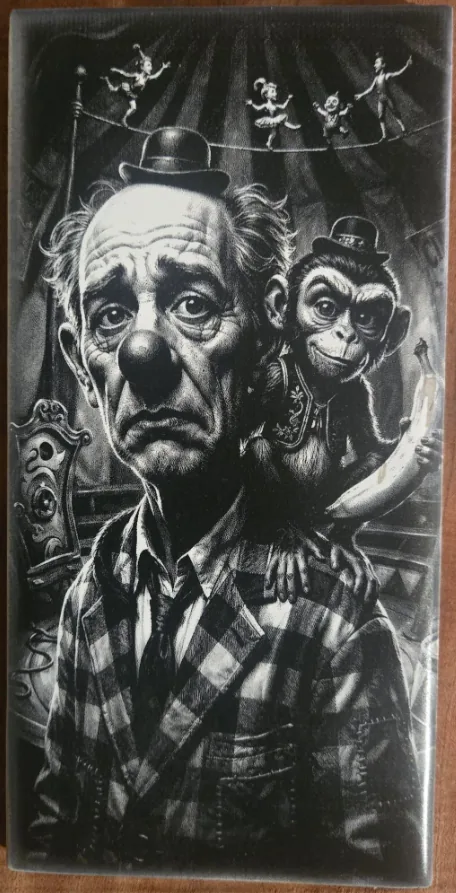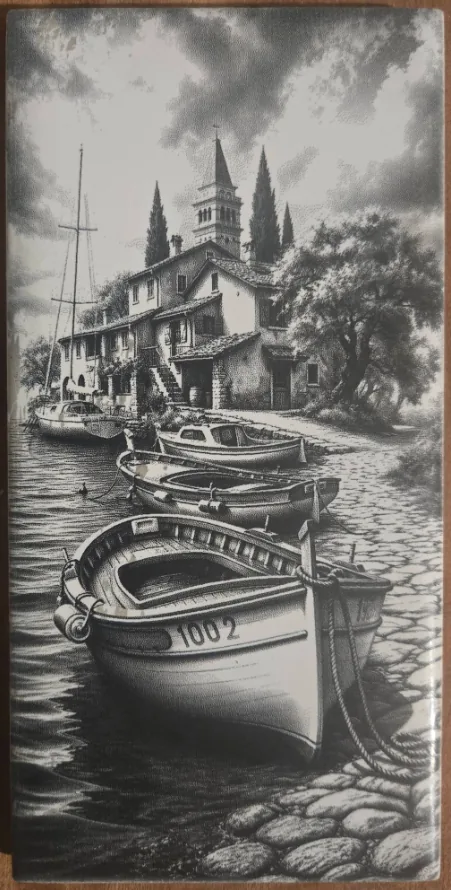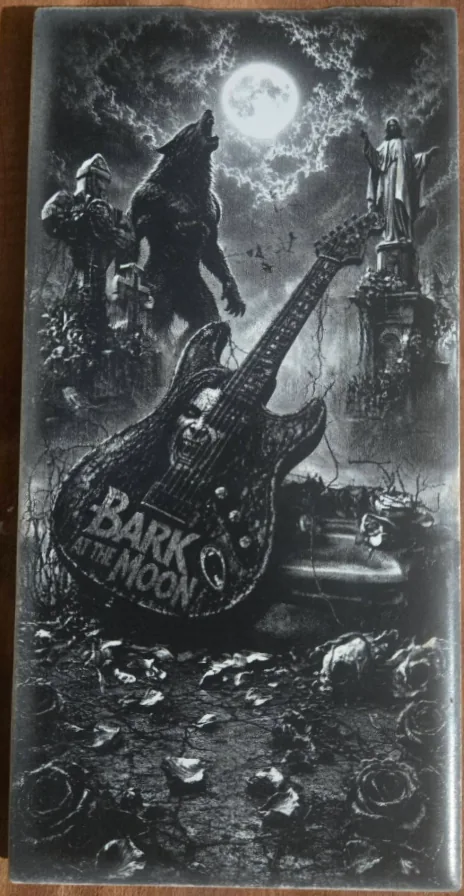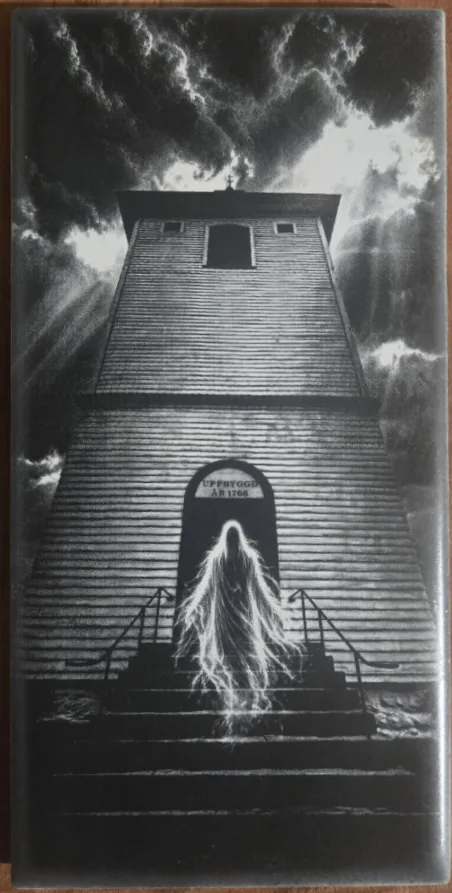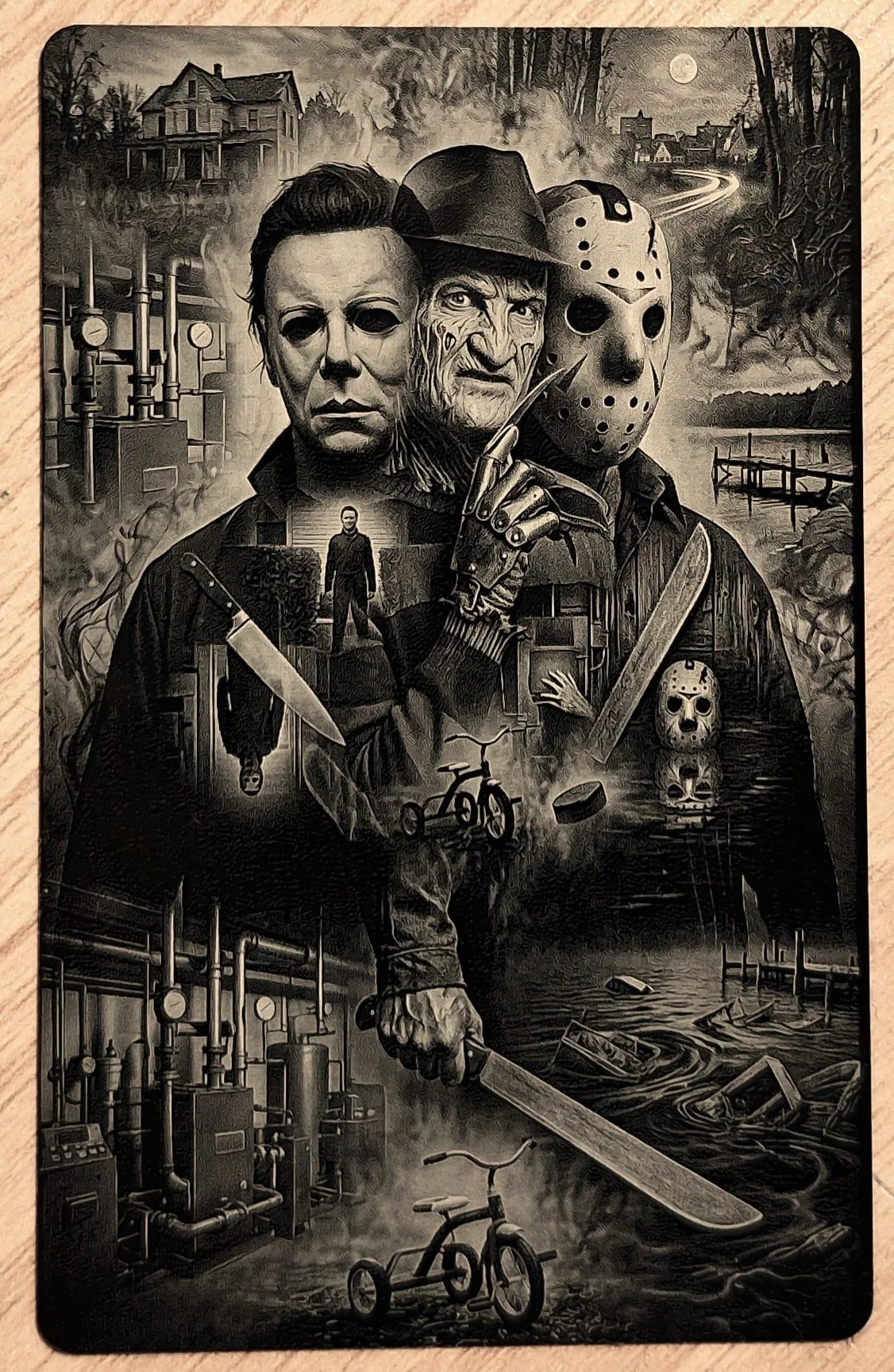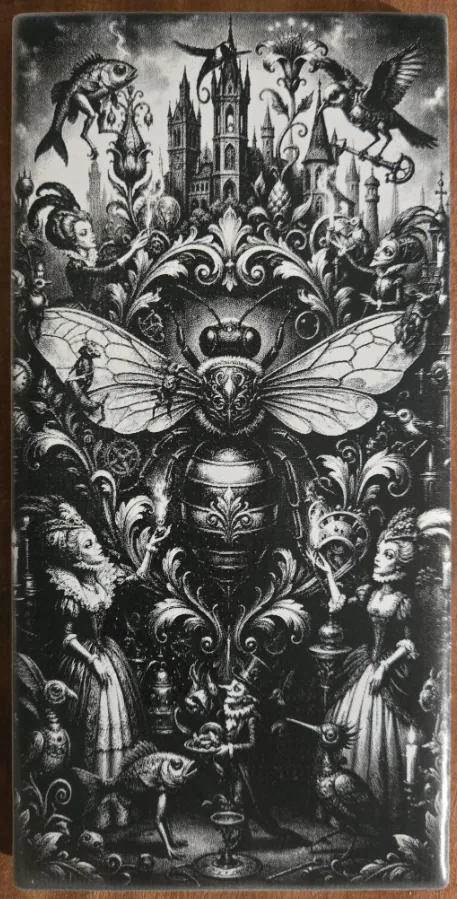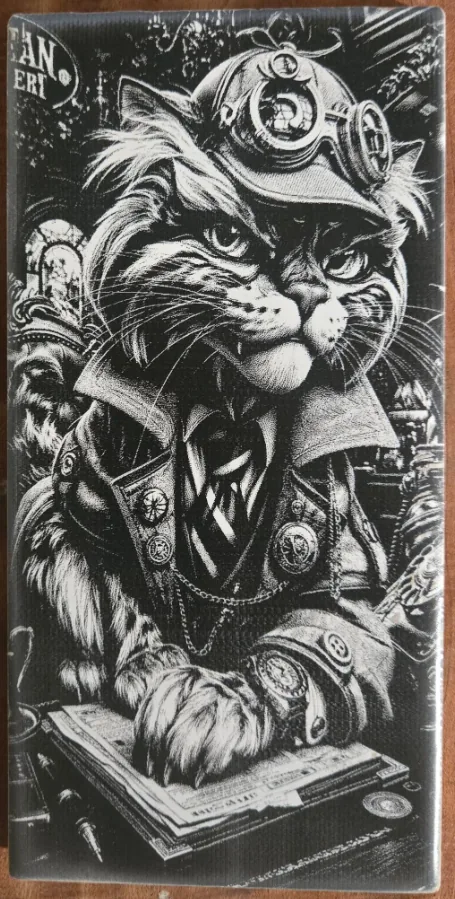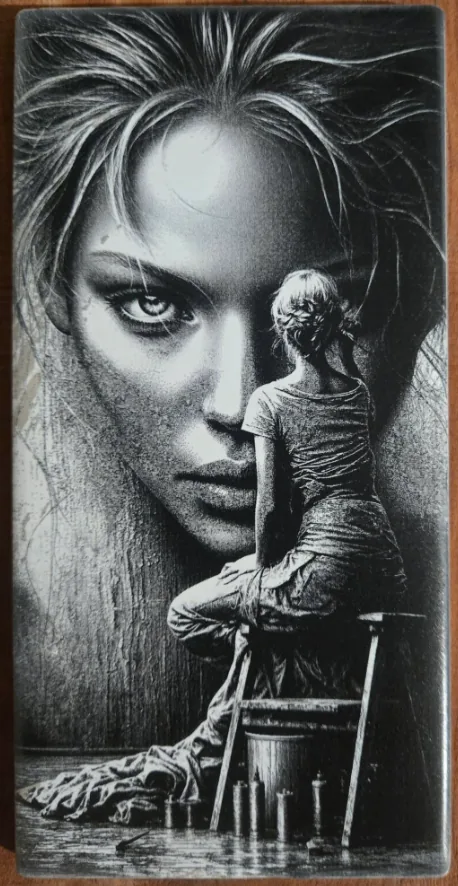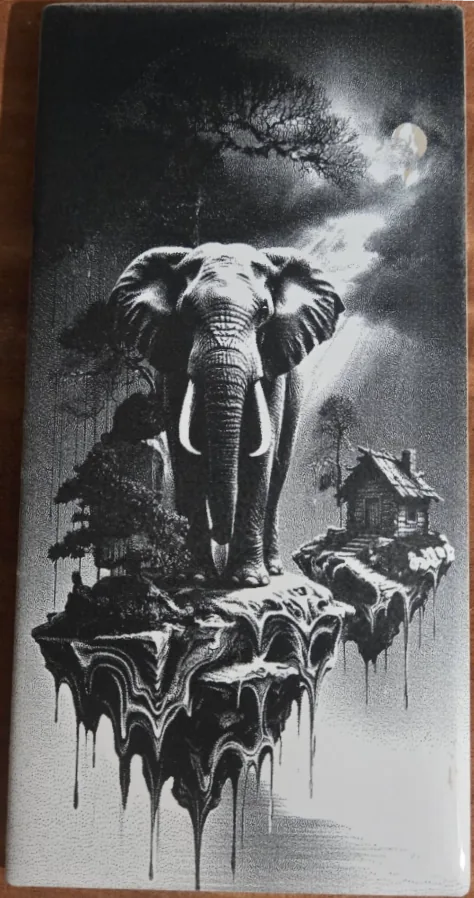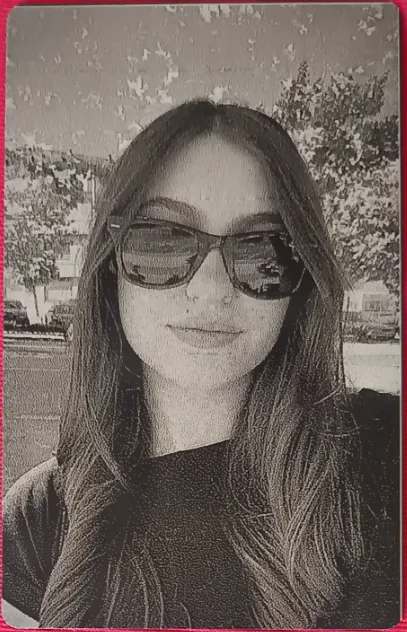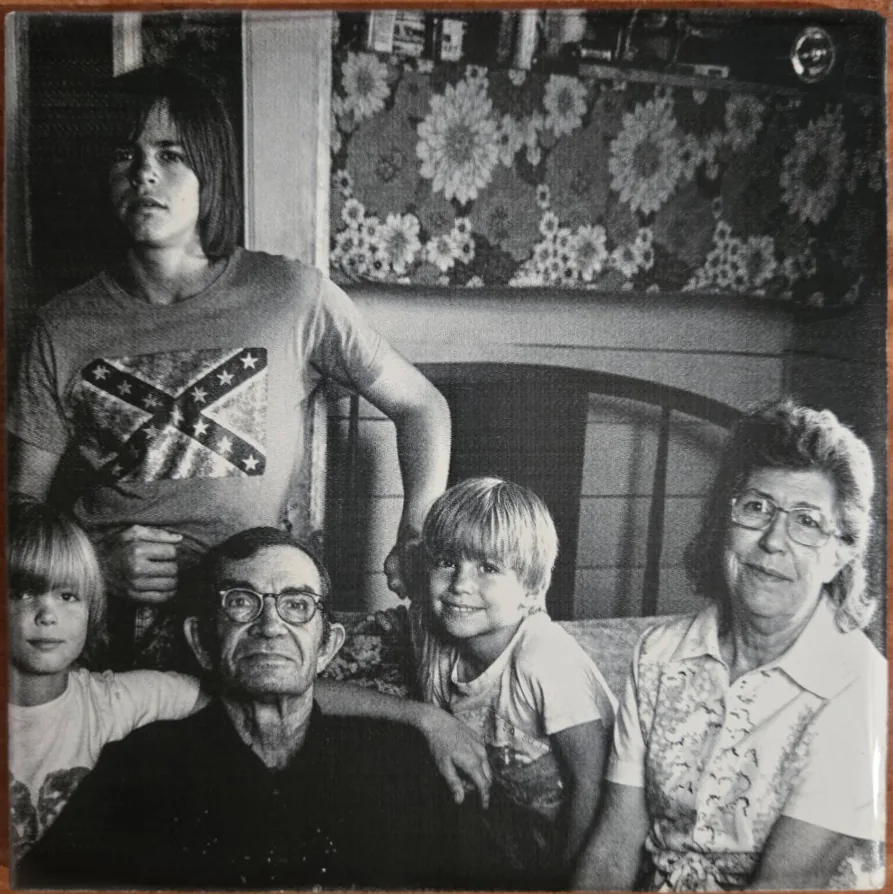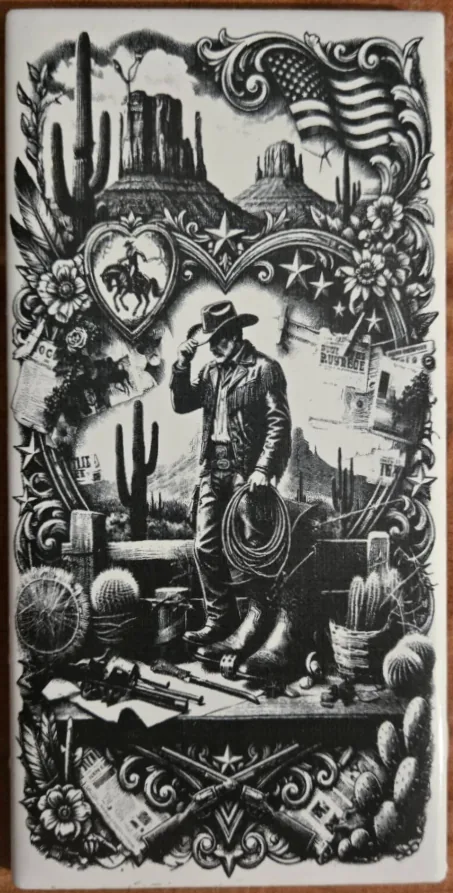

DithX - Free Laser Engraving Website & Image Processing Tool

DithX Logo
← Back to Home

The DithX Process — Full Tool Workflow

Upload

Bring your image into DithX to start the laser preparation workflow. The file opens in the central editor with available size and DPI information.

Supported formats

  • PNG — ideal when you need transparency
  • JPEG / JPG — standard photo format
  • WebP — modern, efficient web images
  • BMP — uncompressed bitmap files

What happens after upload

  • The image is placed in the main editor
  • Pixel size and DPI are shown when the file contains that data
  • A transparency checkerboard appears when relevant
  • You can continue with Crop, Background Remover, DithX PR, or go straight to Dimensions

Limits

The practical upload limit is about 25 MB. Very large files may take longer and use more browser memory.

Tip: use the highest-quality original you have. Heavily compressed social-media images lose detail before dithering even starts.

Crop Tool

Select exactly the area you want to keep. Cropping early keeps composition clean and avoids wasted engraving area.

Crop shapes

  • Square — equal sides
  • Rectangle — free width and height
  • Circle — round cutout
  • Freehand — draw your own outline

Controls

  • Inline Crop — keep the shape inside the image, or allow it to extend outside
  • Corner Radius — round corners on Square and Rectangle (0–100%)
  • Move and scale the crop interactively
  • Preview before you commit

Actions

  • Apply Crop — apply the current selection
  • Confirm Crop — lock the crop into the working image
  • Reset — restore crop settings
  • Cancel / Close — leave without applying

A second crop uses a bounding box. Shape tools, Inline Crop, and Corner Radius are then no longer available.

Background Remover

Isolate your subject with AI, then refine edges by hand. After removal you can keep transparency or place a new background.

Automatic removal

Remove Background isolates the subject and makes the background transparent. DithX shows a loading state while processing.

Manual brushes

  • Erase — remove areas (red indicator)
  • Restore — bring areas back (green indicator)
  • Fill Erase / Fill Restore — change a connected region in one action
  • Brush size from 1 px to 200 px
  • Undo / Redo and Reset to Original

Precision viewing

  • Zoom from 1x to 20x
  • Mouse-wheel zoom and space + drag to pan
  • Reset zoom when you need the full frame again

New background

  • Transparent — keep the cutout clear
  • Solid Color — color picker or hex value
  • Image — upload PNG, JPEG, WebP, or BMP as a new backdrop

You do not have to restart if AI misses an edge: Restore brings detail back, then Erase can refine again.

Dimensions & DPI

Lock the physical size of your project so the laser output matches your material. This step anchors every later export.

Units

  • mm — metric physical size
  • inch — imperial unit (physical size)
  • pixels — direct pixel control

Settings

  • Width, height, and DPI
  • Optional aspect-ratio lock
  • Apply Dimensions — freeze values for the rest of the workflow
  • Default DPI is 300

Conversion

For mm: pixels = mm × DPI ÷ 25.4. For inches: pixels = inch × DPI. In pixel mode, the pixels are the leading unit and the physical millimetres are shown as a reference.

PNG exports keep DPI metadata whenever possible, so machine software can read the intended resolution.

Effects

Shape light, color, and detail before dithering. Every control updates live so you can judge the result immediately.

Light

  • Brightness, Shadows, Highlights, Contrast
  • Levels Black / Mid / White for tonal control

Color

  • Saturation, Vibrance, Hue
  • Temperature, Tint, Gamma

Detail & style

  • Clarity, Sharpness, Edge Focus, Noise
  • Line Art, Texture Punch, Soft Matte, Vintage
  • BW Contrast, Edge Boost, Grayscale, Invert, Mirror, Sepia

Presets

Built-in presets include High Detail, Photo Realism, Sepia Glow, Grayscale, Mirror Image, Auto Fix, and Invert. You can also save, load, export, and import your own presets as JSON (stored locally in the browser).

Use split-screen compare, then Apply Effects when the preview looks right. Reset Effects returns to the previous baseline.

Text Editor

Place one or more text layers on your image — from a simple label to a full multi-line composition.

Editors

  • Compact Text Editor — fast labeling and titles
  • Large Text Editor — multi-layer layouts with deeper controls

Typography & style

  • Standard and decorative fonts
  • Size ranges up to 500 px (compact) or 800 px (large)
  • Bold, italic, underline, color, and hex input
  • Stroke with adjustable width and color

Transform & effects

  • Rotation, curve/bend, horizontal and vertical mirror
  • Shadow and glow in the Large editor
  • Blend modes, letter spacing, line height, skew, scale, blur

Apply text into the working image before dithering so lettering becomes part of the final engraved design.

Dithering (27 algorithms)

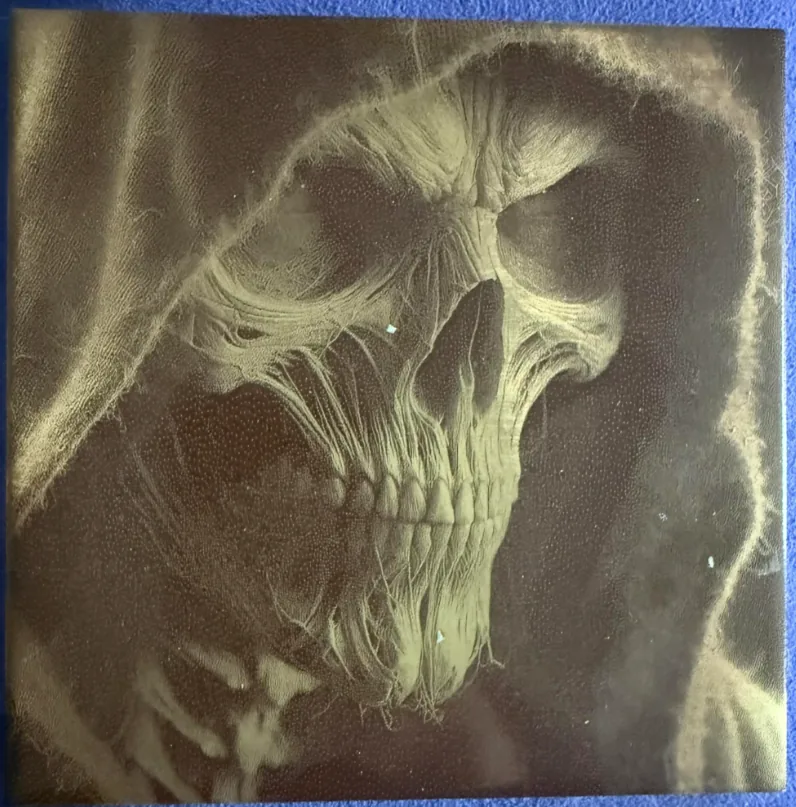
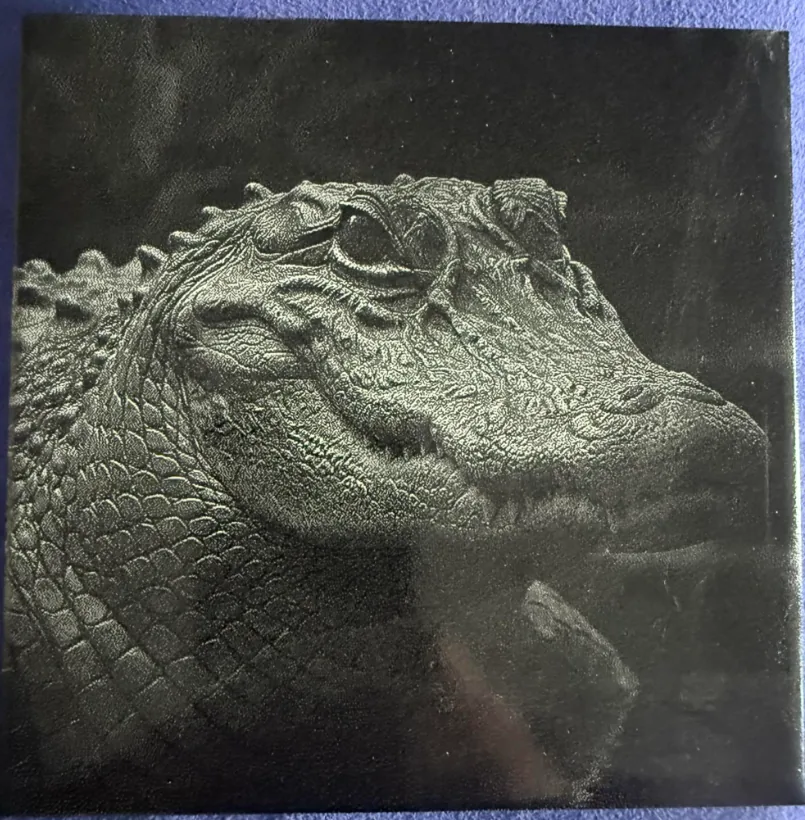
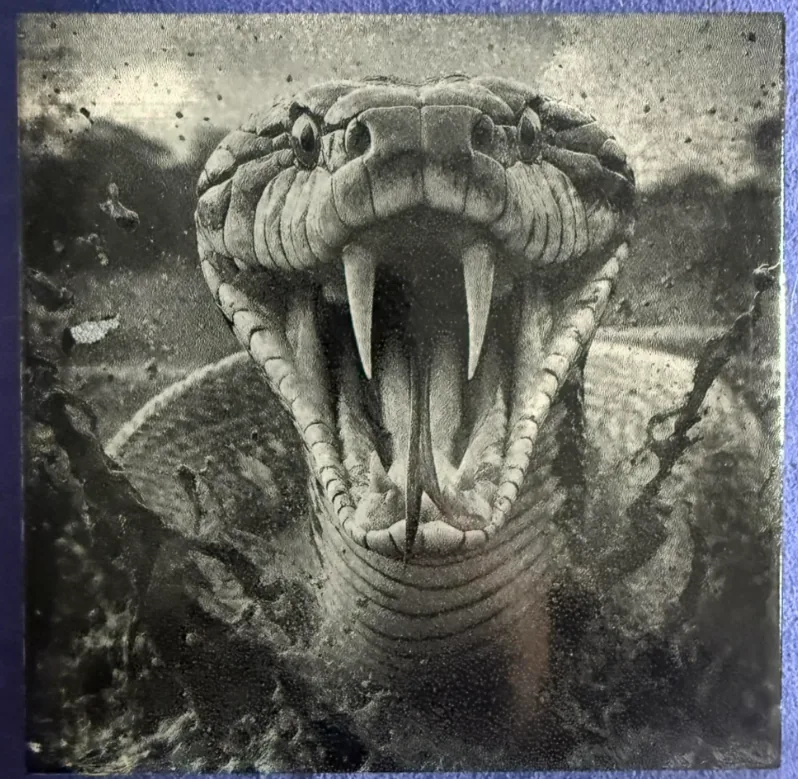
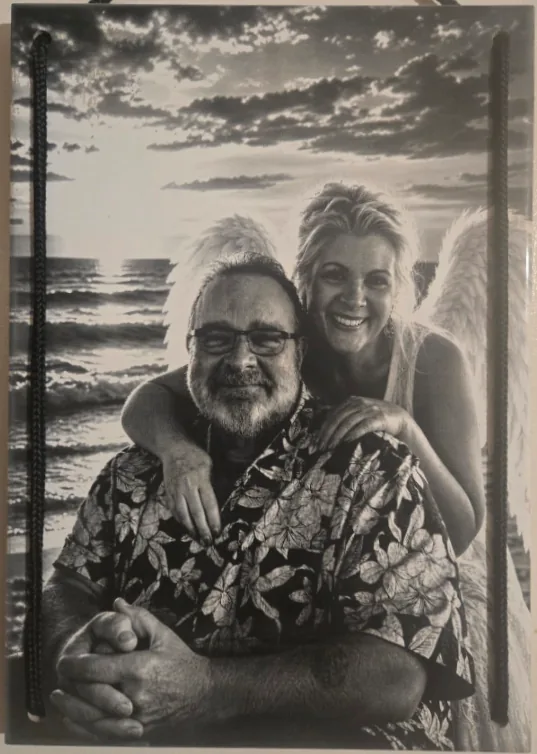
Convert tonal images into laser-ready dot patterns. DithX offers 27 algorithms so you can match wood, slate, acrylic, metal, and more.

What you set

  • Algorithm choice
  • Target width, height, DPI, and unit (mm / inch / pixels)
  • Inverted mode
  • Optional grayscale handling
  • Jarvis threshold where relevant

Algorithm families

Error diffusion options include Floyd-Steinberg, Atkinson, Stucki, Jarvis-Judice-Ninke, Sierra variants, Burkes, Stevenson-Arce, Shiau-Fan, and more. Ordered and artistic looks include Bayer, NeoMatrix, Blue Noise, Adaptive, Custom modes, Dot Diffusion, Filter Lite, Grayscale, Zigzag Floyd-Steinberg, and Knoll.

Preview

  • Full-screen original vs dithered comparison
  • Draggable split slider
  • Change algorithm without closing the preview
  • Per-algorithm tips for use-case and materials
  • Zoom 1x–10x with a movable loupe

The best algorithm depends on your photo, material, DPI, and laser type. Use the preview at 100% zoom to judge real dot separation.

Fine Tune

After dithering, refine the final map without running the full dither pass again.

Light & levels

  • Black Point, Mid Point, White Point
  • Brightness, Contrast, Exposure, Shadows, Highlights, Gamma
  • Linear Invert and Value Invert

Color & atmosphere

  • Saturation, Vibrance, Hue, Temperature, Tint
  • Sepia, Fade, Glow, Vignette

Detail & enhance

  • Sharpness, Clarity, Edge Focus, Noise
  • Enhance Radius and Enhance Amount

Apply when satisfied, then export PNG at the exact target size and DPI. Slider presets are available through the Slider Presets Tool.

Slicer Tool

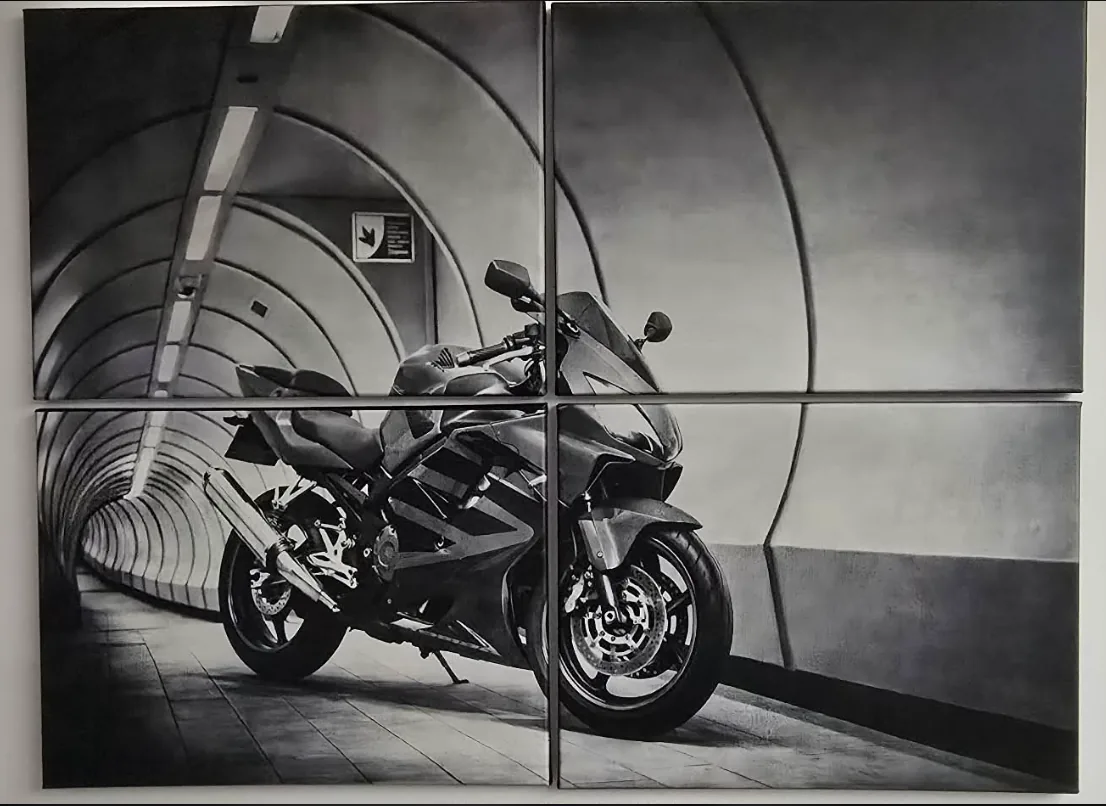
Split large engravings into tiles when the artwork is bigger than your machine bed or material panel.

Modes

  • Automatic — calculates grid and tile size from the image
  • Manual — set columns, rows, and tile size yourself

Settings

  • Units in mm or inch
  • Tile width / height, columns, rows
  • Maintain Aspect Ratio on or off
  • Output as PNG, JPG, or BMP

Export

Preview the grid overlay, confirm tile count, then download a ZIP bundle (DithX_Sliced-Tiles.zip). Tiles keep DPI metadata when possible.

Jigsaw Puzzle Generator

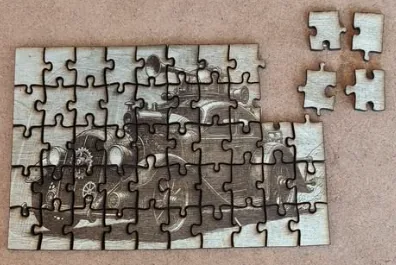
Create reproducible puzzle piece layouts as SVG — ideal for cutting or engraving puzzle paths.

Controls

  • Pieces — set the puzzle piece layout
  • Tab Size, Jitter, Complexity, Asymmetry
  • Pieces X / Pieces Y — horizontal and vertical count
  • Radius — shape of the tabs

What you see

  • Total piece count
  • Grid size
  • Physical size in mm

Export

New Layout creates a new pieces layout. Export SVG writes horizontal, vertical, and edge paths with physical dimensions in the file.

Contour Trace

Turn visible edges and transparent shapes into clean SVG vector paths for cutting or outline engraving.

Settings

  • Brightness Threshold (0–255) — lower favors dark areas, higher favors light
  • Vector Quality (0.5–15) — lower keeps more detail, higher smooths lines

Workflow

  • Open Contour Trace
  • Set threshold and vector quality
  • Check the live contour preview and masks
  • Generate SVG, confirm ready status, then download

SVG physical size follows your project dimensions (mm, inch, or pixels). The filename includes size, unit, and DPI.

DithX PR — Precision Reconstruction

DithX PR reconstructs and enhances image detail for laser preparation. Processing runs entirely in your browser — no server load. Compare Original and Processed side by side before you apply the result.

What DithX PR does

  • Rebuilds texture and detail for cleaner laser-ready output
  • Shows a live Original / Processed comparison view
  • Lets you review the result before it becomes part of your workflow
  • Works locally in the browser (Device: Browser / Local)

PR Controls

  • Start DithX PR — begin Precision Reconstruction with the selected filter
  • Undo DithX PR — discard the PR result and return to the previous image
  • Apply DithX PR — accept the processed image into your working file

PR Filter Style

Choose a reconstruction style before you start. Example style:

  • Retro Texture Restoration — film-like grain, warm tones, softer edges

Filter processing runs in your browser with no server load.

PR Target Size

  • Keep aspect ratio — lock width and height together when enabled
  • Unit — work in mm (or the selected unit)
  • DPI — set output resolution (for example 318 DPI)
  • Width / Height — set the physical target size in mm
  • Apply dimensions & DPI — lock the target size for PR
  • Undo dimensions — revert size and DPI changes

Status guidance in the tool confirms when dimensions are locked and you can pick a filter and start DithX PR.

System information shown

  • Image Width / Image Height (source pixels)
  • File Type (for example PNG)
  • Processing Time
  • Output Width / Output Height
  • Output File Size and Output Format
  • Active Model (selected PR filter)
  • Device: Browser (Local)

Use DithX PR when you need stronger detail reconstruction than a simple resize. Review Original vs Processed, then Apply only when the result looks right for engraving.

Preparation tools in DithX

Start by uploading your image, then use Crop, Background Remover, or DithX PR before you lock size and DPI. DithX accepts PNG, JPEG/JPG, WebP, and BMP up to about 25 MB and shows pixel size and DPI when available.

Upload & image info

Place the image in the editor with a transparency checkerboard when needed. After upload you can open Background Remover, Crop, DithX PR, or continue straight to dimensions.

Crop Tool

Crop with Square, Rectangle, Circle, or Freehand. Use Inline Crop to keep the shape inside the image, Corner Radius (0–100%) on square/rectangle crops, then Apply, Confirm, Reset, or Cancel. A second crop uses a bounding box.

AI Background Remover

Remove Background isolates the subject. Refine with Erase, Restore, Fill Erase, and Fill Restore (brush 1–200 px), plus Undo/Redo and Reset to Original. Zoom 1x–20x and pan for edge work. Then set a new background: Transparent, Solid Color, or Image.

DithX PR

Precision Reconstruction rebuilds detail in the browser. Compare Original and Processed, set target size and DPI, choose a filter style, then Start / Undo / Apply DithX PR.

Dimensions, effects & text

After preparation, lock physical size and DPI, apply Light/Color/Detail effects with live split preview, then add text layers when needed.

Dimensions & DPI

Set width, height, and DPI in mm, inch, or pixels. Keep aspect ratio if you want. Apply Dimensions locks values for the rest of the workflow. Default DPI is 300; PNG export keeps DPI metadata when possible.

Effects & presets

Light (Brightness, Shadows, Highlights, Contrast, Levels), Color (Saturation, Vibrance, Hue, Temperature, Tint, Gamma), and Detail styles (Clarity, Sharpness, Edge Focus, Noise, Line Art, Grayscale, Invert, Sepia, and more). Use built-in presets such as High Detail, Photo Realism, Auto Fix, or save your own JSON presets.
Text Editor

Compact and Large editors support multi-layer text, fonts, size, color, stroke, curve/bend, rotation, mirrors, shadows, glow, blend modes, and alignment. Apply text into the working image before dithering.

Download working image

Download Image saves the current working image with applied dimensions and DPI (DithX-image.png). The final export includes stamped text as DithX-final.png.

Dithering & Fine Tune

DithX converts tonal information into laser-ready dot patterns using 27 dithering algorithms, with interactive preview and optional post-dither Fine Tune.

27 dithering algorithms

Choose Floyd-Steinberg, Atkinson, Stucki, Jarvis-Judice-Ninke, Sierra, Sierra Lite, Sierra Two-Row, Burkes, Stevenson-Arce, Shiau-Fan, Bayer, NeoMatrix, Zuderhoff, Helix, Zircon, DeltaGrid, Nova, Ostromoukhov, Blue Noise, Adaptive, Custom, Custom Error Diffusion, Dot Diffusion, Filter Lite, Grayscale, Zigzag Floyd-Steinberg, and Knoll — covering error diffusion, ordered patterns, and artistic looks.
Dither settings

Set algorithm, target width/height, DPI, unit (mm/inch/pixels), inverted mode, optional grayscale skip, and Jarvis threshold where relevant.
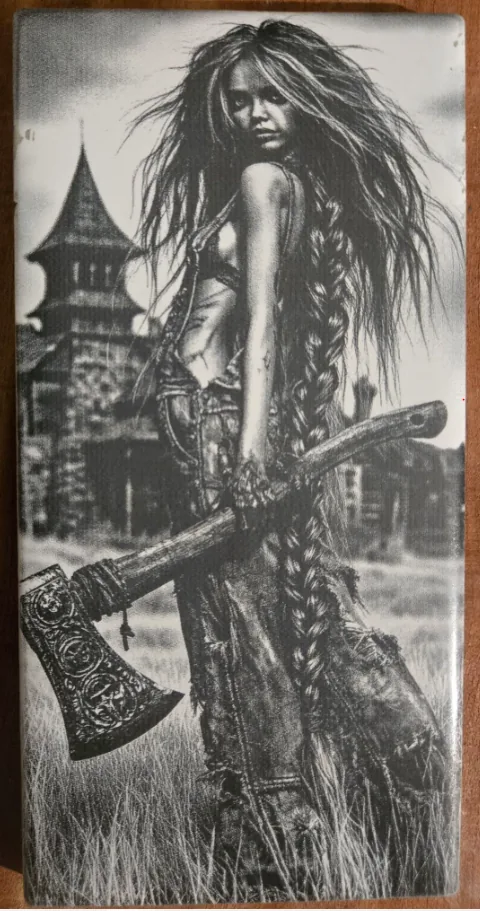
Live dithering preview

Compare original and dithered results with a split slider, change algorithms without closing the preview, read per-algorithm tips, and zoom 1x–10x before you continue.

Fine Tune after dithering

Adjust Black/Mid/White points, Brightness, Contrast, Exposure, Shadows, Highlights, color, Sepia, Fade, Glow, Vignette, Sharpness, Clarity, Edge Focus, Noise, and Enhance — then export PNG with exact target size and DPI.

Export & advanced production tools

Finish with downloads and advanced tools: Slicer (ZIP tiles), Jigsaw Puzzle Generator (SVG), and Contour Trace (SVG paths).

Slicer Tool

Split large engravings into tiles. Automatic or Manual mode, mm/inch, tile size, columns/rows, aspect ratio lock, PNG/JPG/BMP output, grid preview, and ZIP bundle DithX_Sliced-Tiles.zip with DPI on tiles when possible.

Jigsaw Puzzle Generator

Build reproducible puzzle layouts with Pieces, Tab Size, Jitter, Complexity, Asymmetry, Pieces X/Y, and Radius. Export SVG with horizontal, vertical, and edge paths sized in real units.
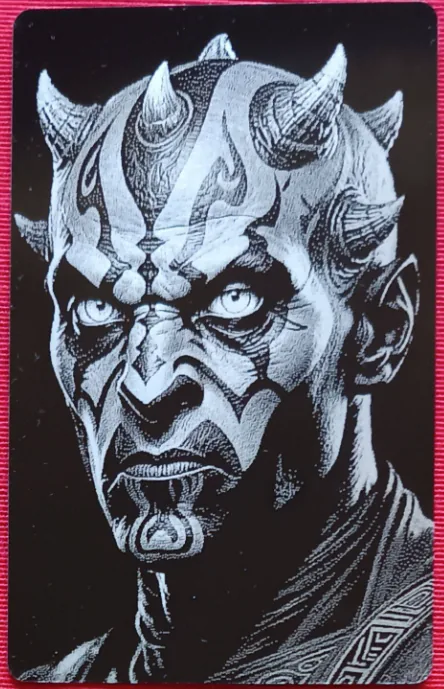
Contour Trace

Convert edges and transparent shapes into vector contours. Set Brightness Threshold (0–255) and Vector Quality (0.5–15), preview live masks, Generate SVG, then Download SVG with physical size and DPI in the filename.
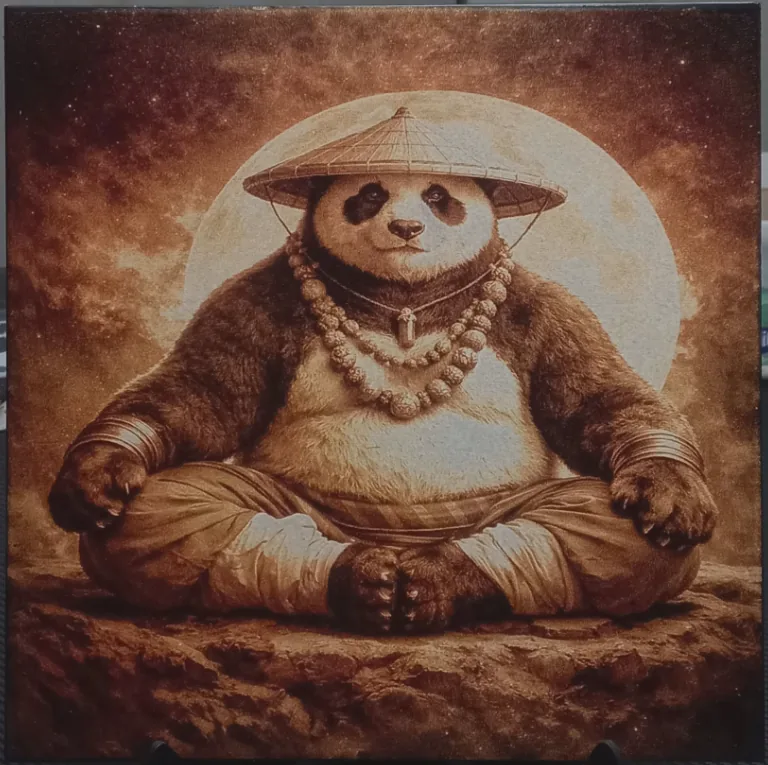
PNG & SVG downloads

Save the dithered PNG directly or after Fine Tune. Also export slicer tiles as ZIP, puzzle patterns as SVG, contours as SVG, and custom effect presets as JSON. Very large PNGs may auto-shrink under about 24 MB.

DithX - The Ultimate Laser Engine

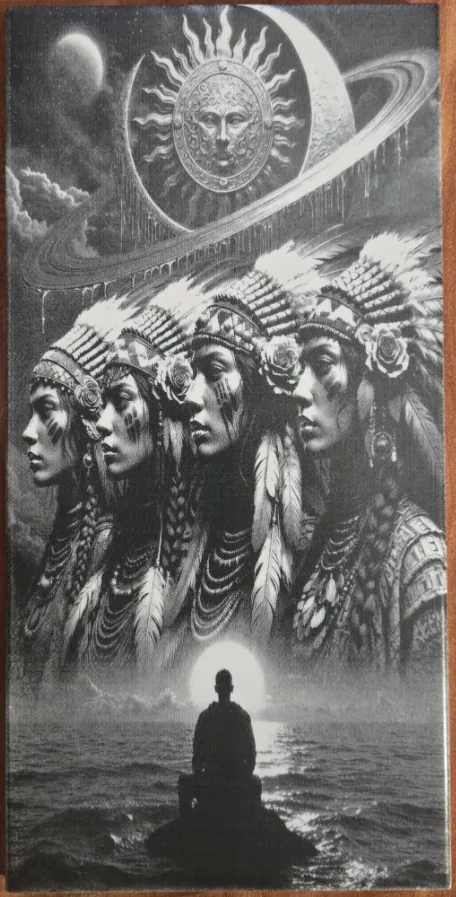
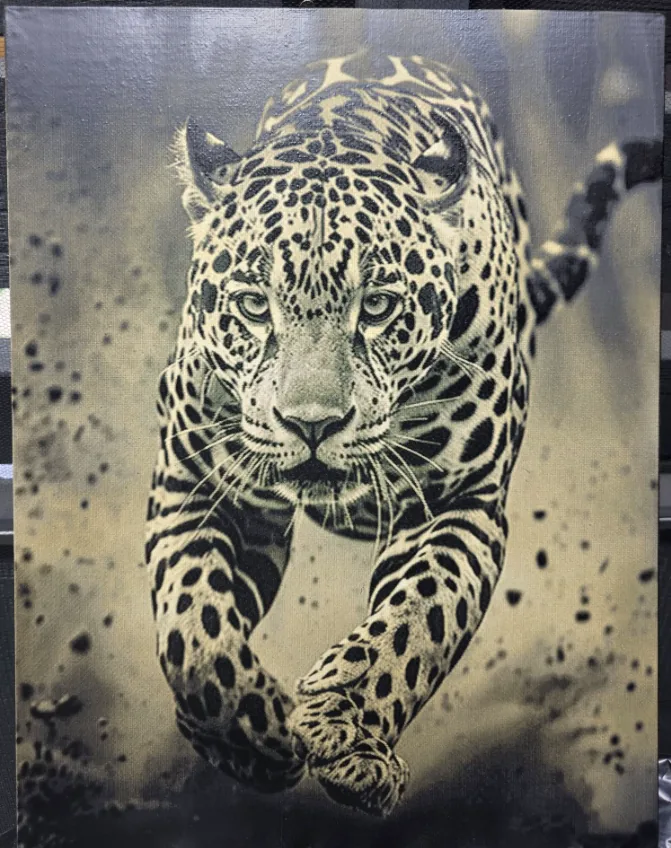
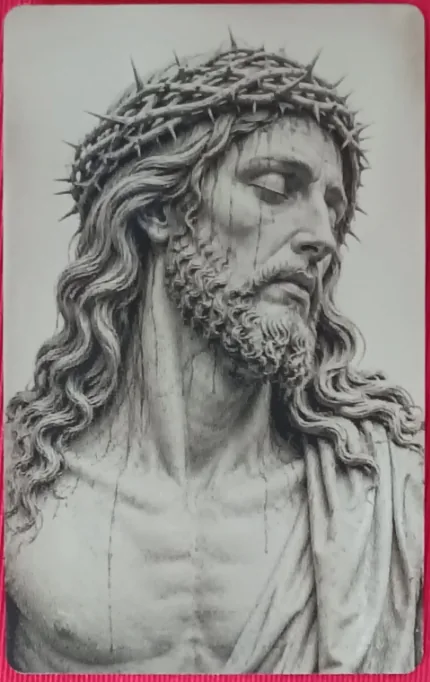
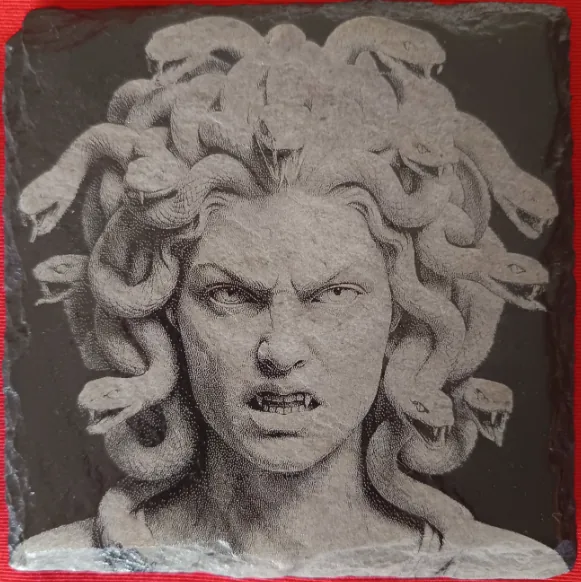
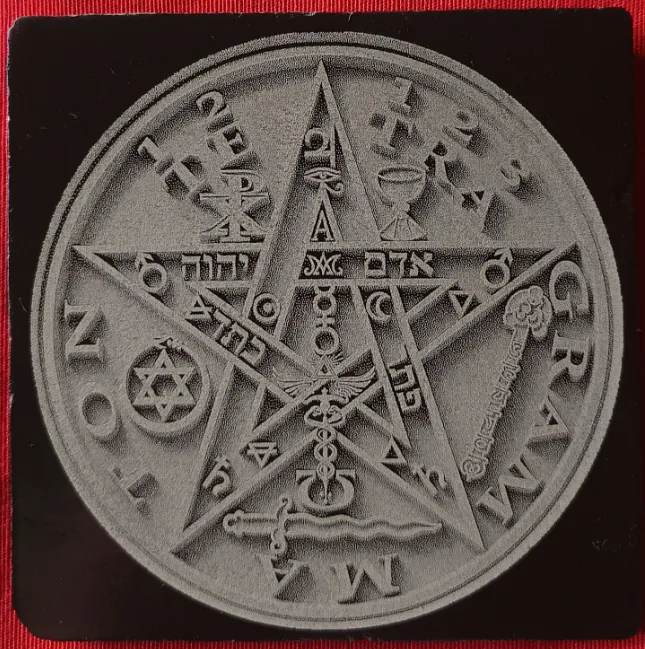
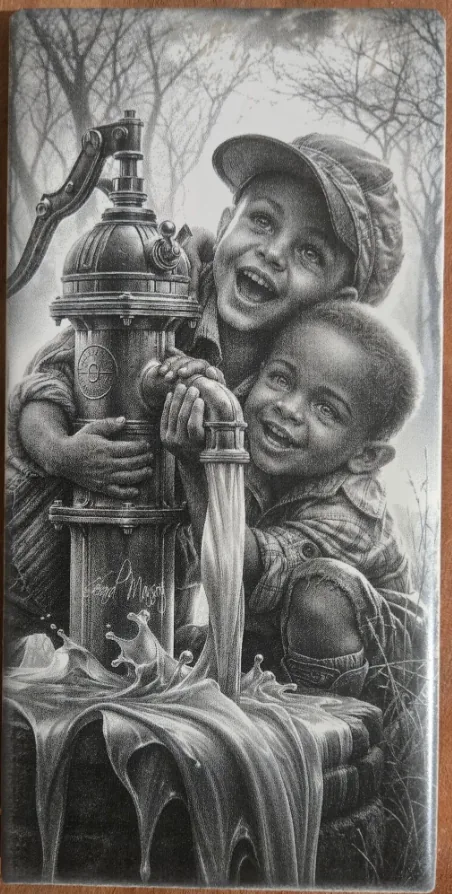
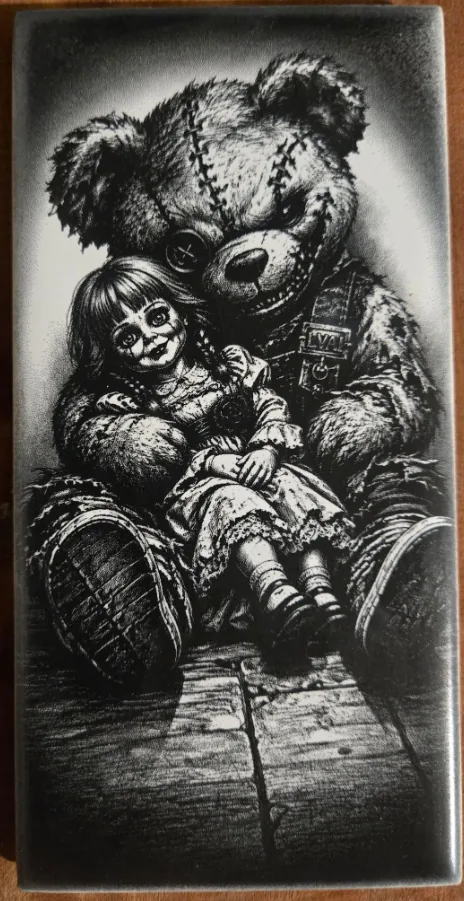
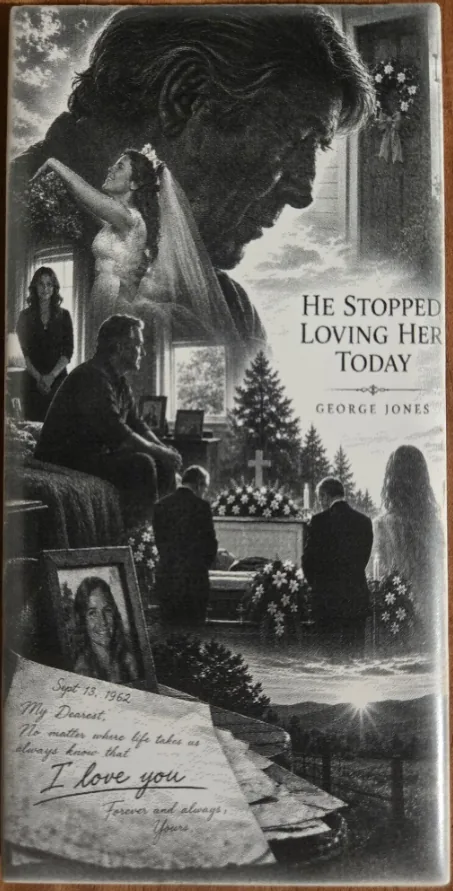
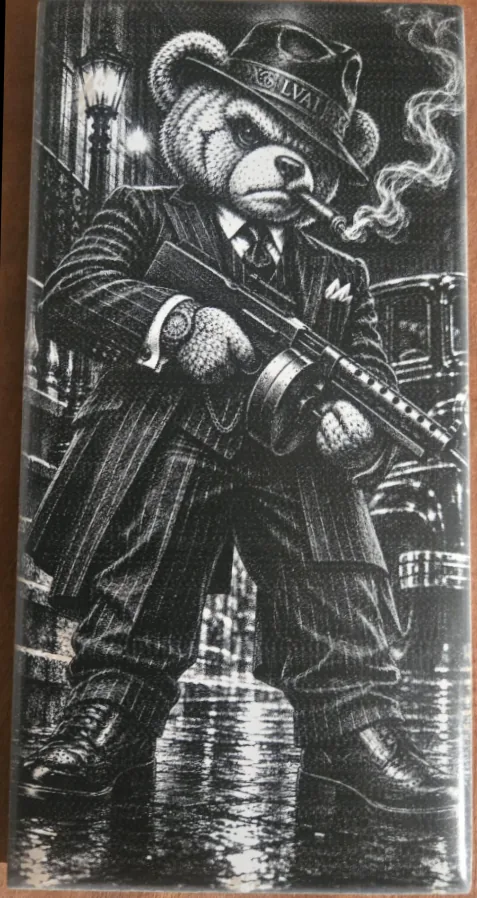
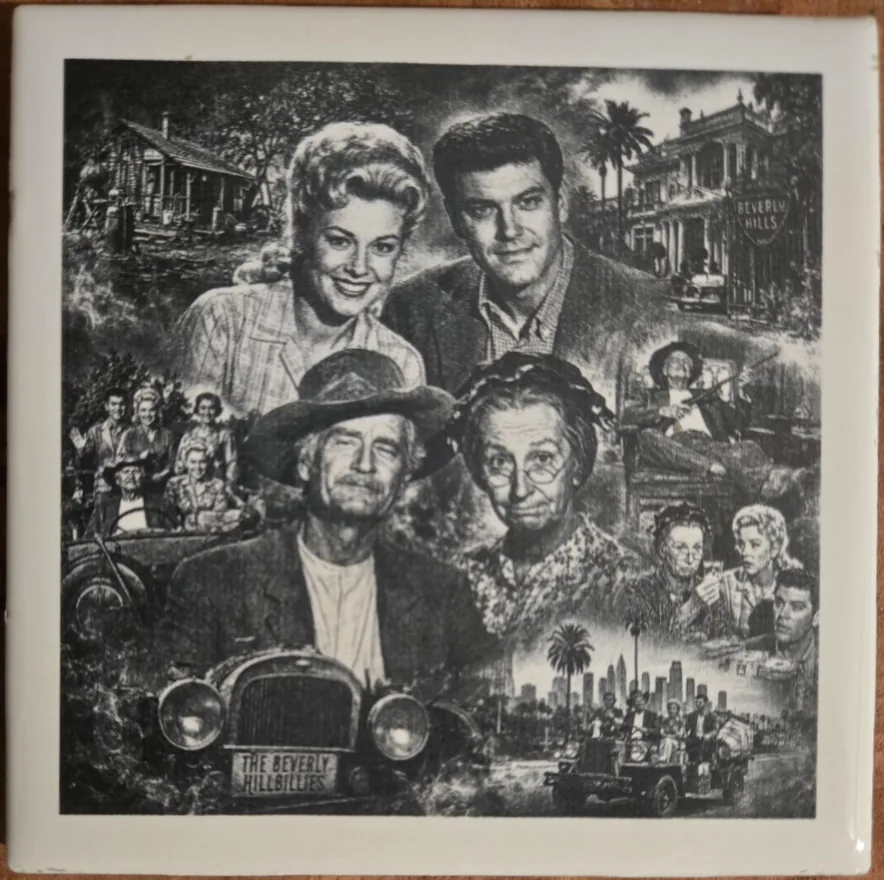
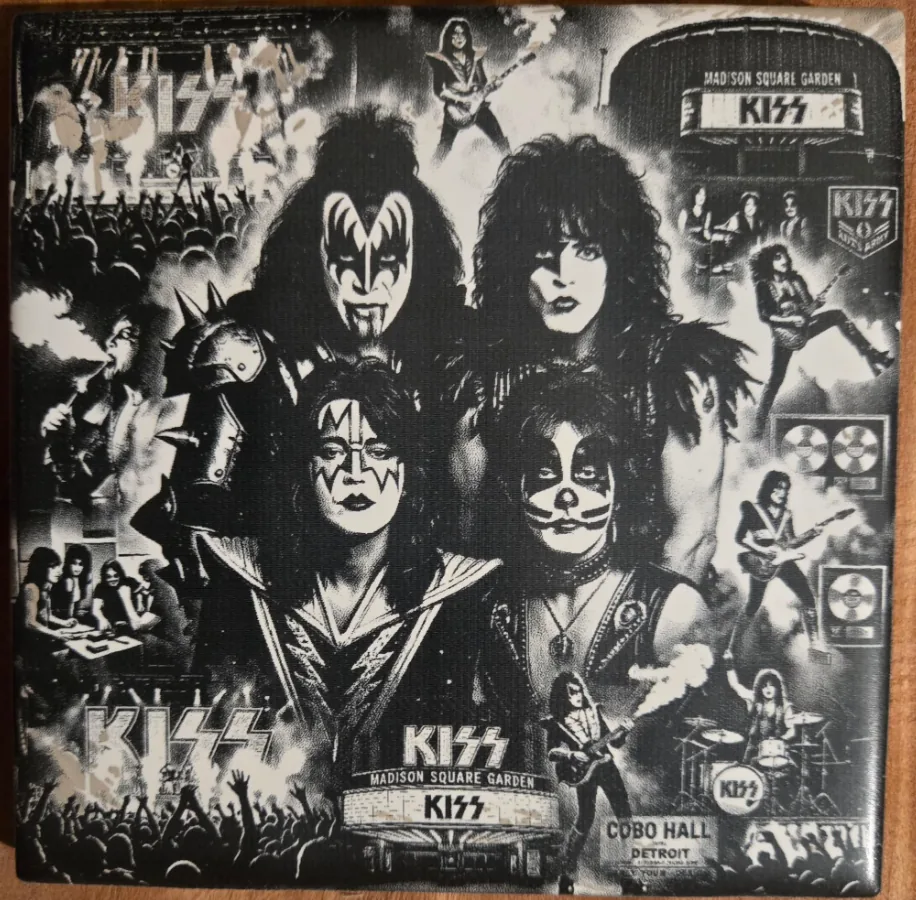
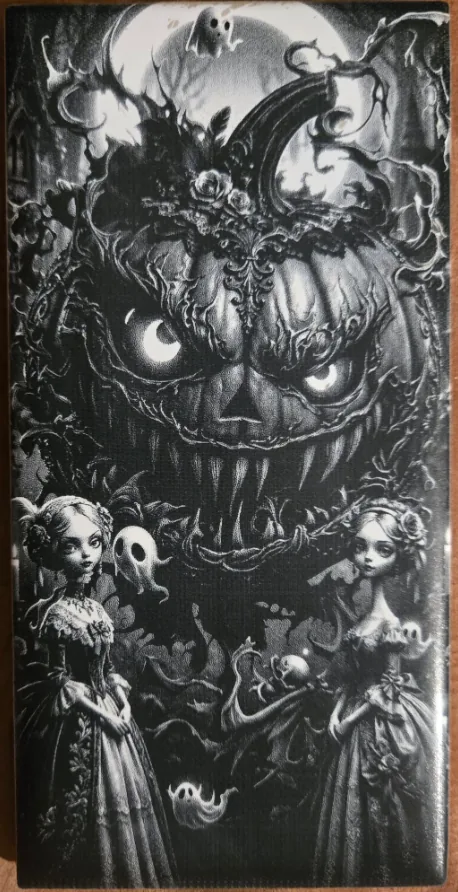
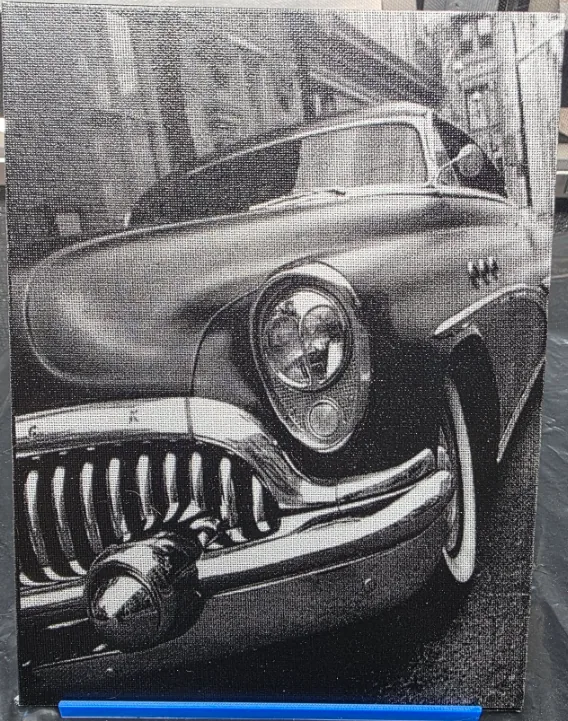
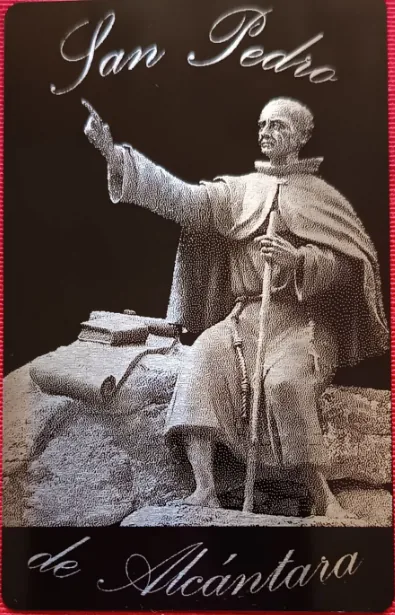
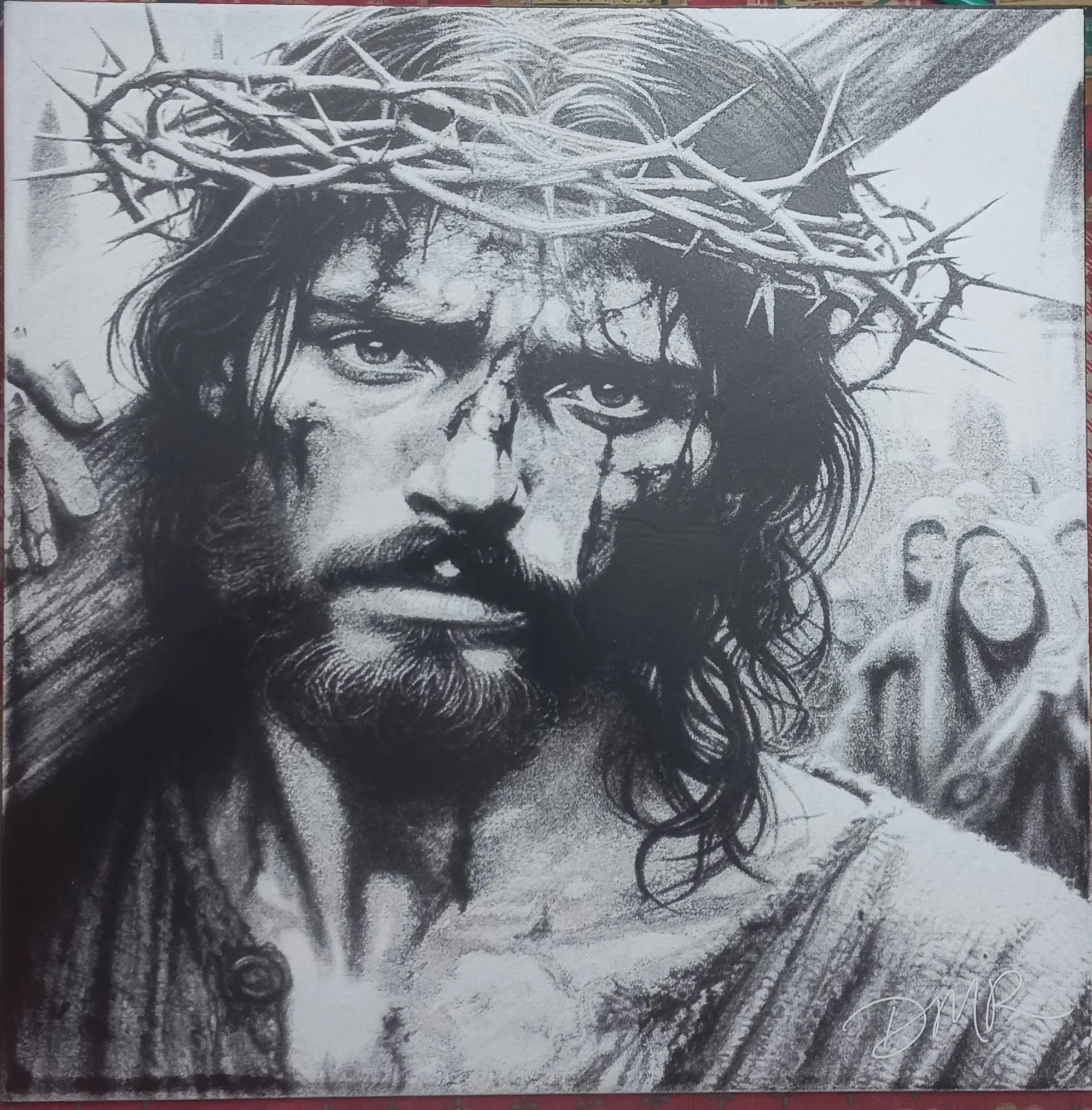
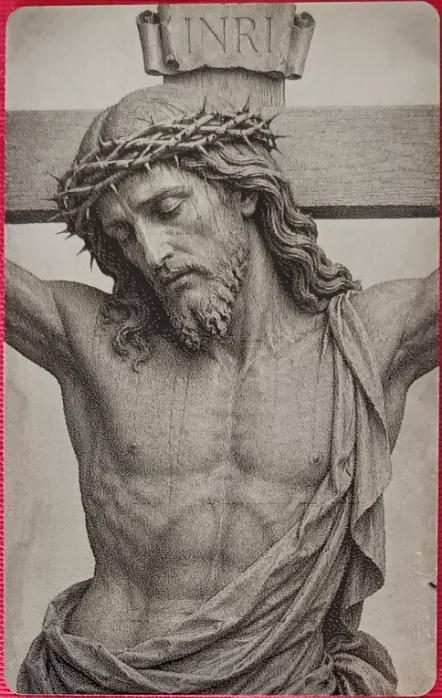
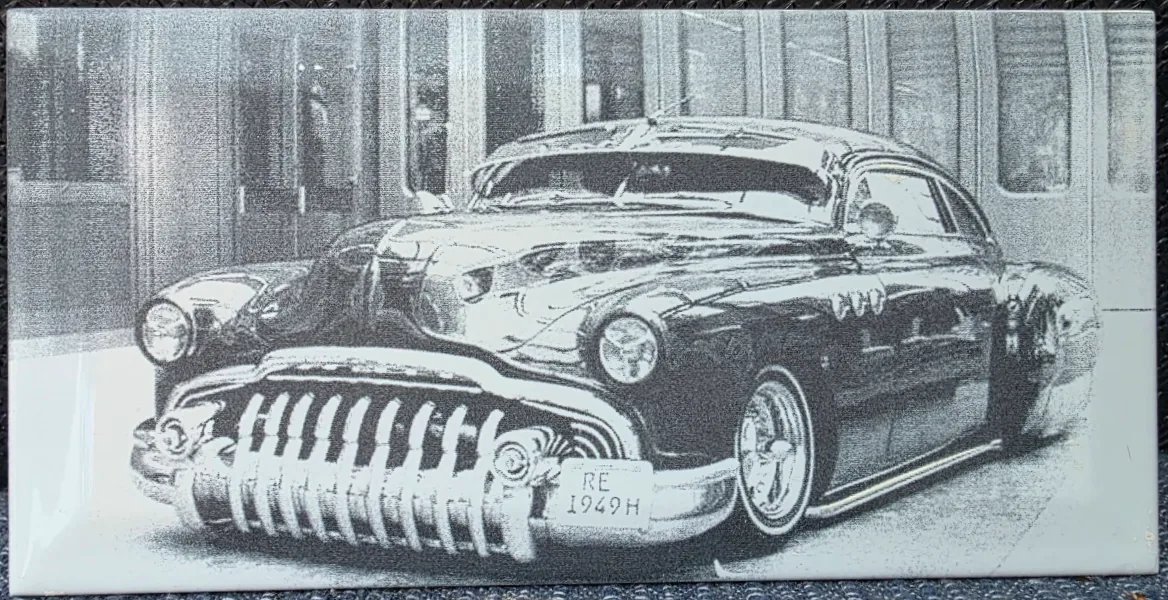
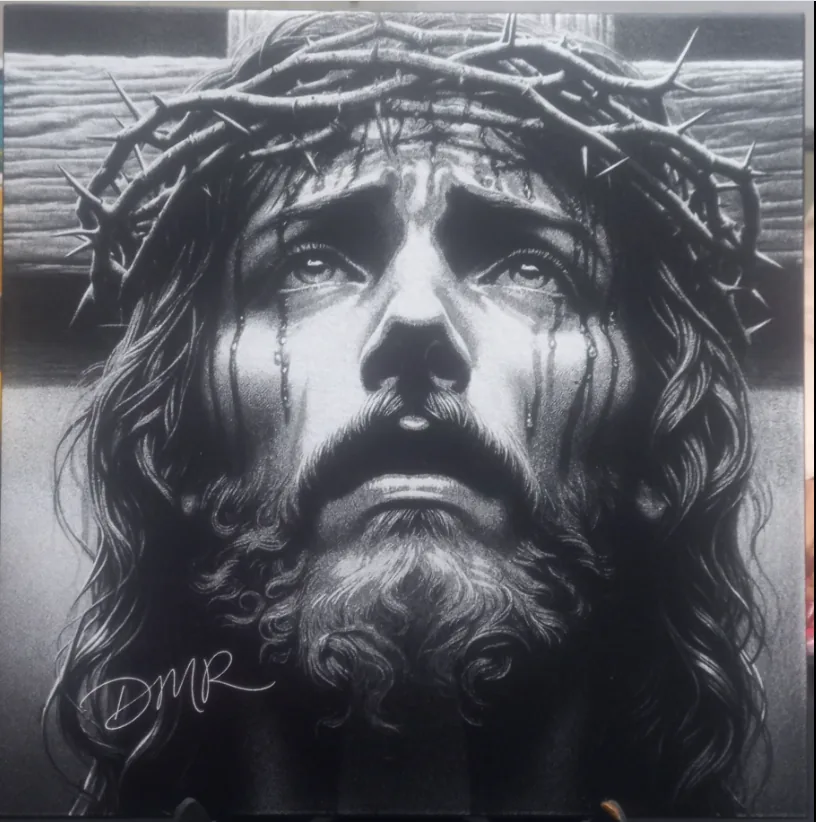
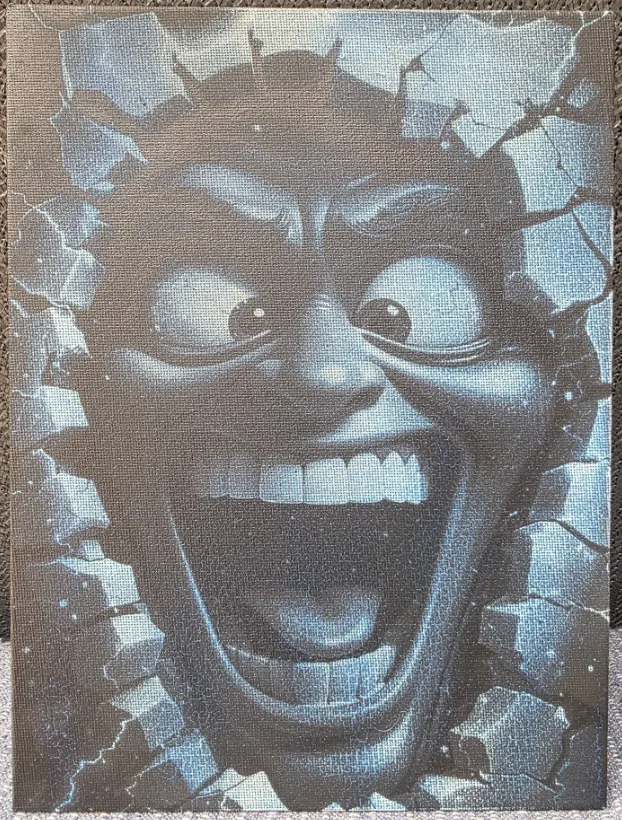
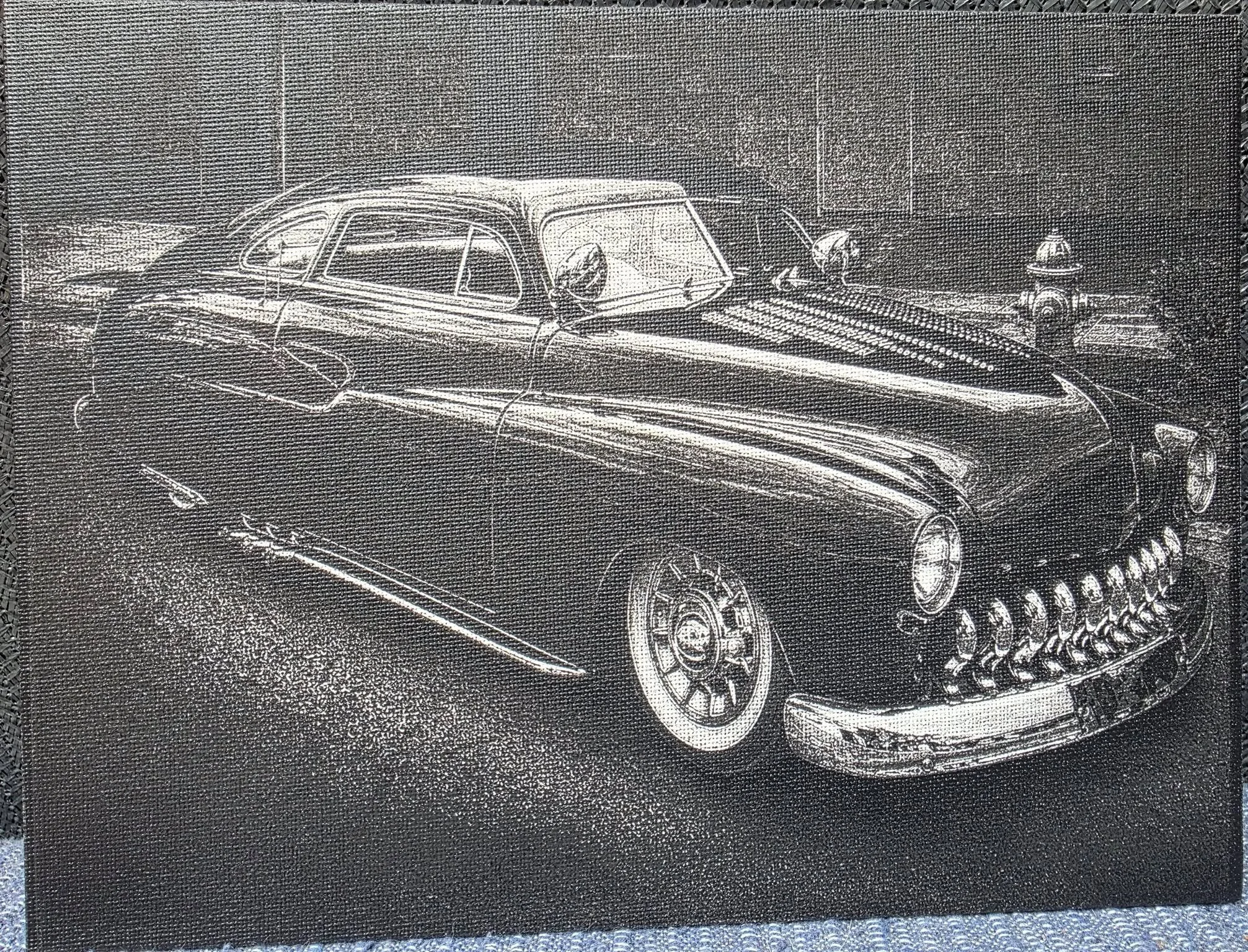
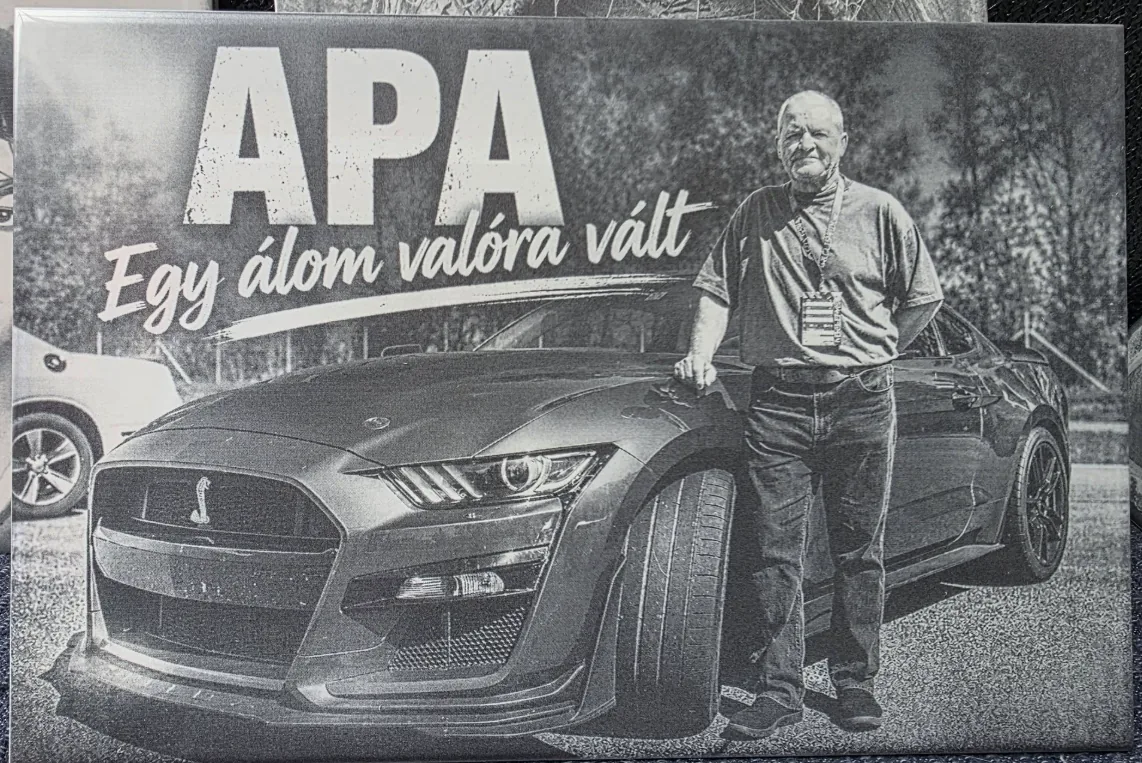
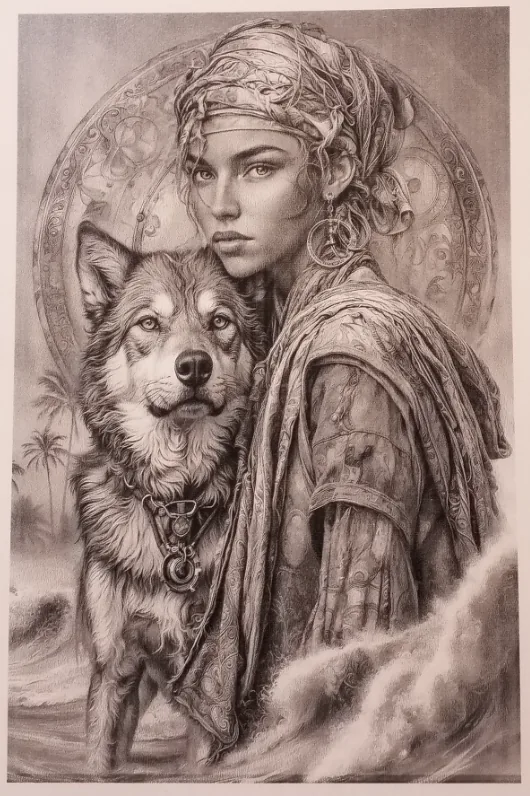
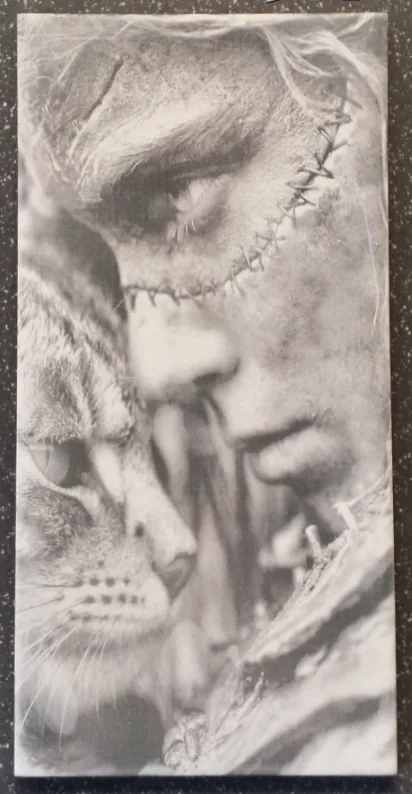
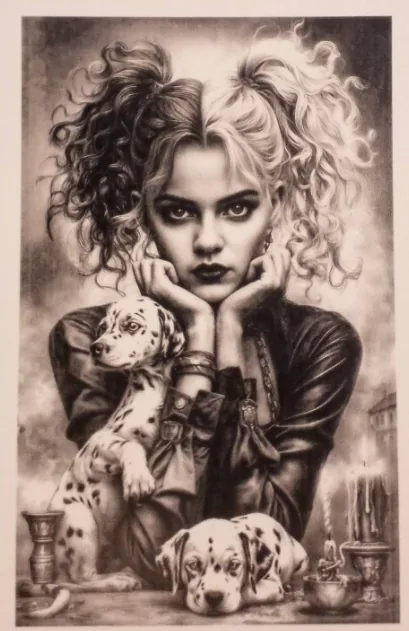
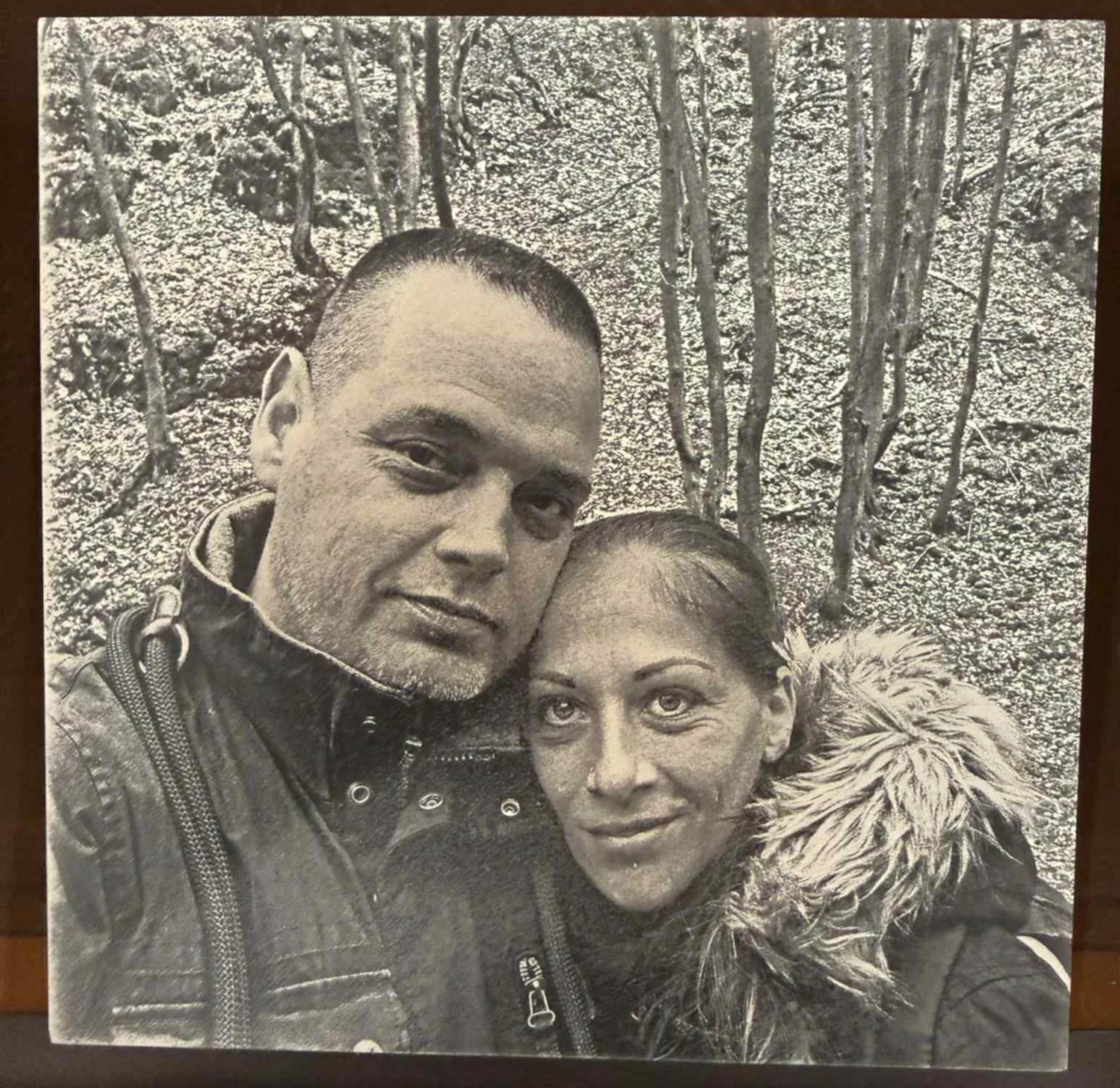
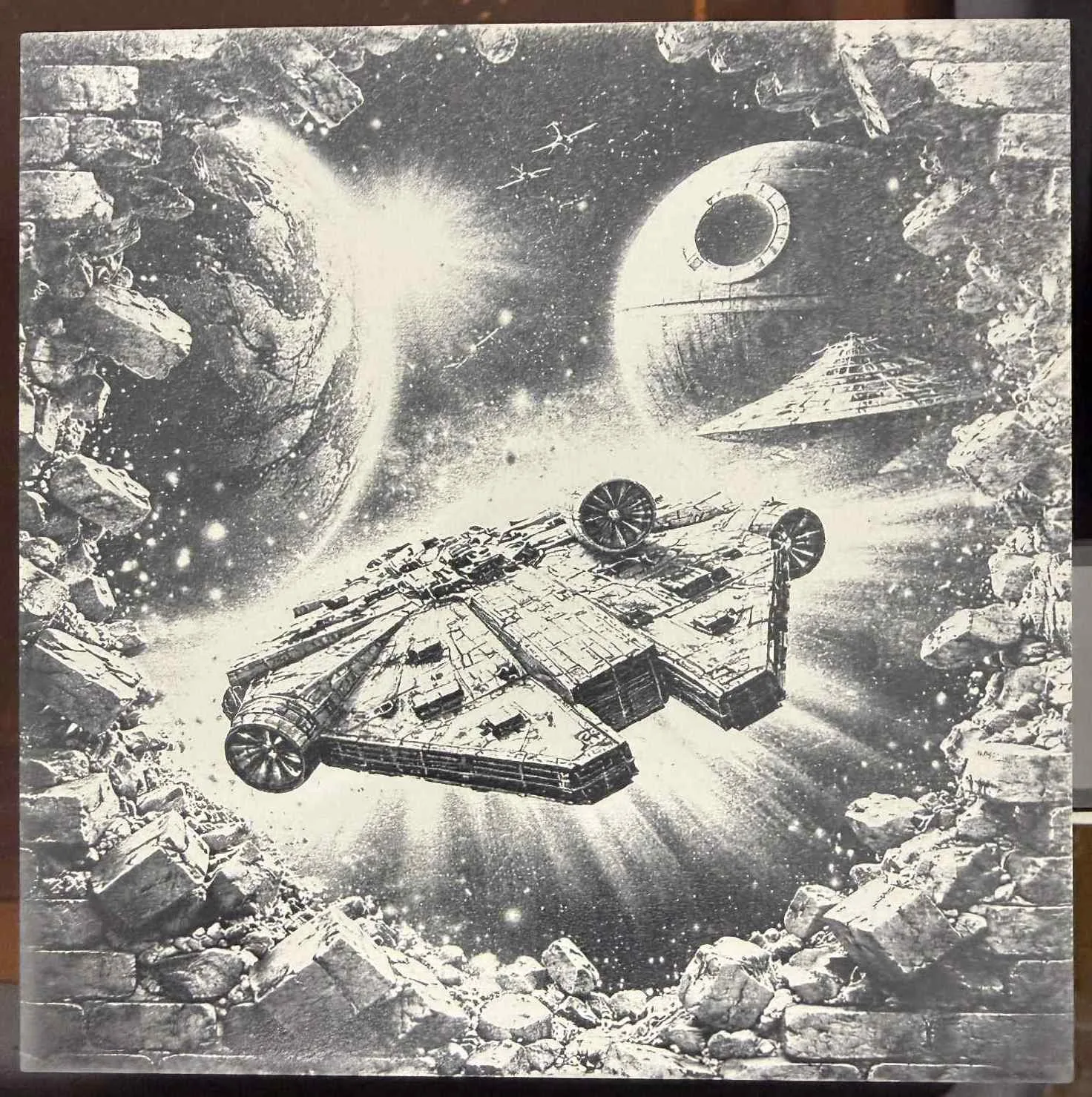
DithX is a free website built for precision laser engraving image preparation.

Use Crop, AI Background Removal with manual cleanup, and Background Replacement.

Set exact Dimensions & DPI, apply Effects & Presets, and use the Text Editor to perfect your image.

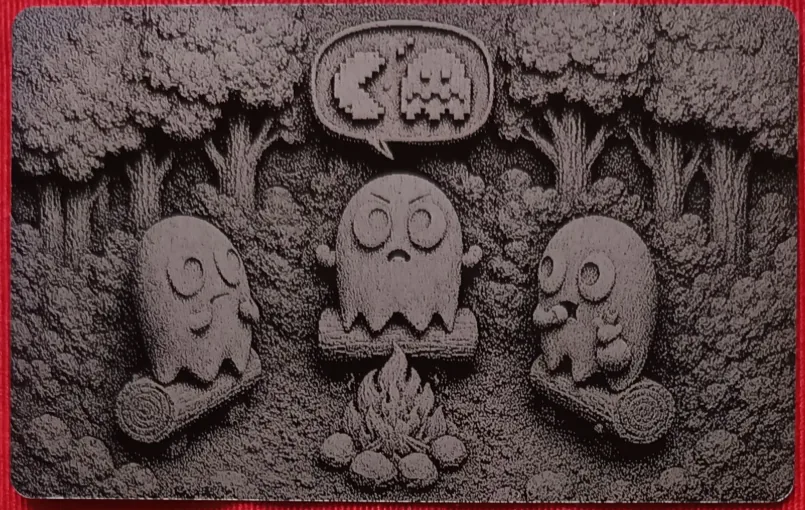
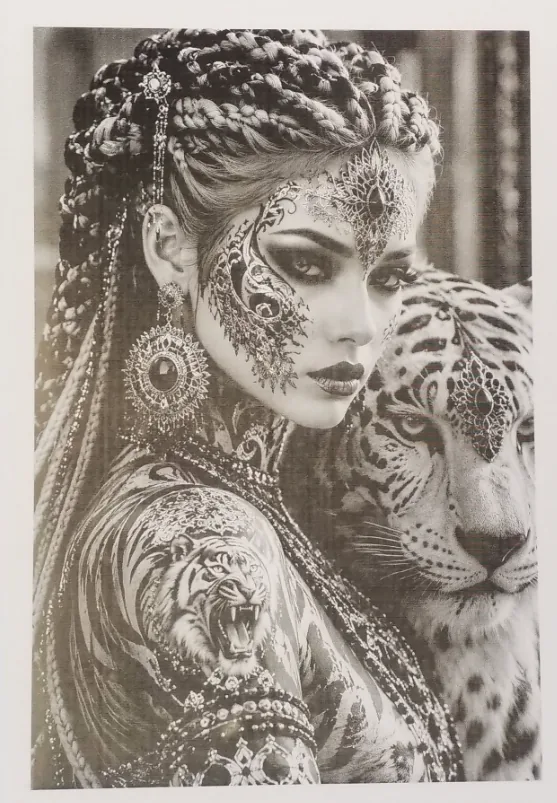
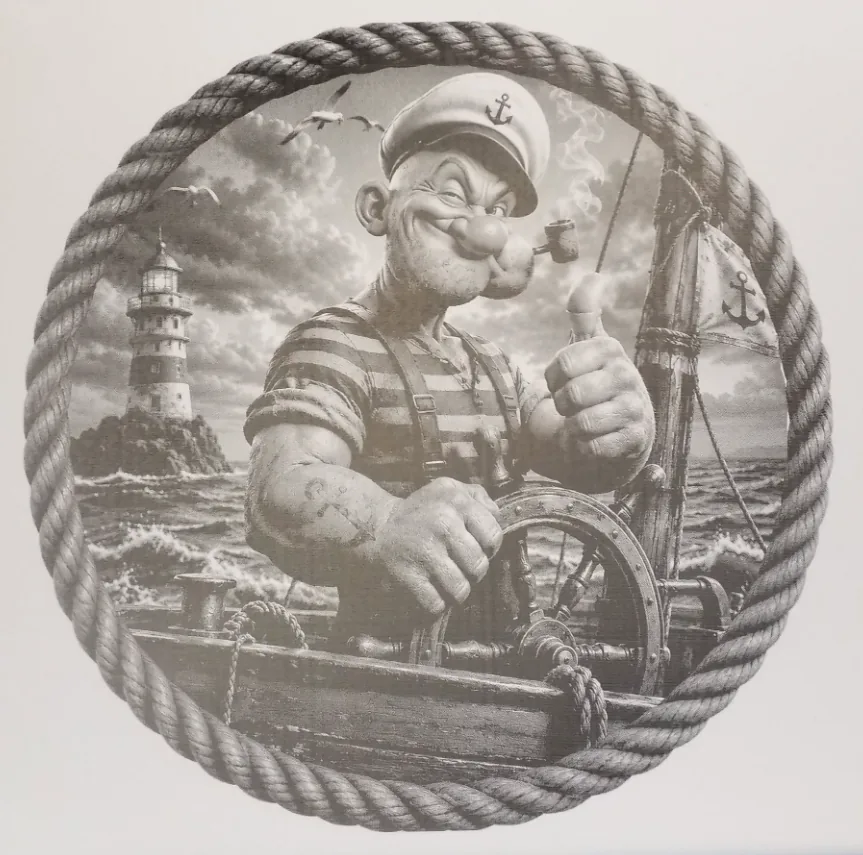
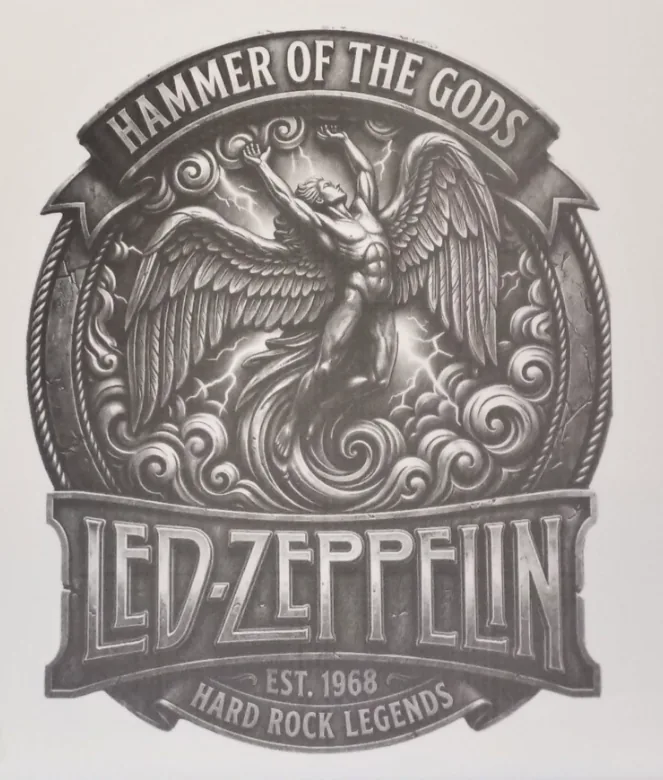
Download at any time, or use 27 advanced algorithms for laser engraving.

Finish with Slicer Tool for tiled exports, or generate Jigsaw Puzzle and Contour Trace SVGs.

Everything is processed locally in your browser and no installation is required.

DithX. Built with passion. Free for everyone.

DithX Interface Preview
Slide 1 Slide 2 Slide 3 Slide 4 Slide 5 Slide 6 Slide 7 Slide 8 Slide 9 Slide 10 Slide 11 Slide 12 Slide 13 Slide 14 Slide 15 Slide 16 Slide 17 Slide 18 Slide 19 Slide 20 Slide 21 Slide 22 Slide 23 Slide 24 Slide 25 Slide 26 Slide 27 Slide 28 Slide 29 Slide 30 Slide 31 Slide 32 Slide 33 Slide 34 Slide 35 Slide 36 Slide 37 Slide 38 Slide 39 Slide 40 Slide 41 Slide 42 Slide 43 Slide 44 Slide 45 Slide 46 Slide 47 Slide 48 Slide 49 Slide 50 Slide 51 Slide 52 Slide 53 Slide 54 Slide 55 Slide 56 Slide 57 Slide 58 Slide 59 Slide 60 Slide 61 Slide 62 Slide 63 Slide 64 Slide 65 Slide 66 Slide 67 Slide 68 Slide 69 Slide 70 Slide 71 Slide 72 Slide 73 Slide 74 Slide 75 Slide 76 Slide 77 Slide 78 Slide 79 Slide 80 Slide 81 Slide 82 Slide 83 Slide 84 Slide 85 Slide 86 Slide 87 Slide 88 Slide 89 Slide 90 Slide 91 Slide 92 Slide 93 Slide 94 Slide 95 Slide 96 Slide 97 Slide 98 Slide 99 Slide 100 Slide 101 Slide 102 Slide 103 Slide 104 Slide 105 Slide 106 Slide 107 Slide 108 Slide 109 Slide 110 Slide 111 Slide 112 Slide 113 Slide 114 Slide 115 Slide 116 Slide 117 Slide 118 Slide 119 Slide 120 Slide 121 Slide 122 Slide 123 Slide 124 Slide 125 Slide 126 Slide 127 Slide 128 Slide 129 Slide 130 Slide 131 Slide 132 Slide 133 Slide 134 Slide 135 Slide 136 Slide 137 Slide 138 Slide 139 Slide 140 Slide 141 Slide 142 Slide 143 Slide 144 Slide 145 Slide 146 Slide 147 Slide 148 Slide 149 Slide 150 Slide 151 Slide 152 Slide 153 Slide 154 Slide 155 Slide 156 Slide 157 Slide 158 Slide 159 Slide 160 Slide 161 Slide 162 Slide 163 Slide 164 Slide 165 Slide 166 Slide 167 Slide 168 Slide 169 Slide 170 Slide 171 Slide 172 Slide 173

The DithX Process

Follow these 9 simple steps to transform your images into perfect laser engraving files.

Video

1Upload & Info

Upload PNG, JPEG/JPG, WebP, or BMP (about 25 MB). DithX reads pixel size and DPI when available and opens the image in the editor.

Video

2Pro Cropping

Crop with Square, Rectangle, Circle, or Freehand. Inline Crop, Corner Radius (0–100%) on square/rectangle, then Apply and Confirm.

Video

3Background Tools

AI Background Remover with Erase, Restore, and Fill brushes (1–200 px), Undo/Redo, zoom 1x–20x. New background: Transparent, Solid Color, or Image. DithX PR (Precision Reconstruction).

Video

4Precise Dimensions

Set width, height, and DPI in mm, inch, or pixels. Keep aspect ratio optional. Apply Dimensions locks size for the full workflow (default DPI 300).

Video

5Effects & Text Editor

Light, Color, and Detail effects with live split preview and presets (High Detail, Photo Realism, Auto Fix, and more). Multi-layer Text Editor with fonts, stroke, curve/bend, glow, and blend modes.

Video

6Dithering

Choose from 27 dithering algorithms (error diffusion, ordered, blue noise, adaptive, custom). Live split preview, zoom, then optional Fine Tune before PNG export with DPI.

Video

7Slicing & Tiles

Slicer Tool splits large jobs into tiles (Automatic or Manual, mm/inch, columns/rows). Preview the grid and download a ZIP (DithX_Sliced-Tiles.zip) with DPI on tiles when possible.

Video

8Jigsaw Puzzles

Jigsaw Puzzle Generator builds reproducible SVG puzzle layouts with Pieces, Tab Size, Jitter, Complexity, Asymmetry, Pieces X/Y, and Radius — ready for cutting or engraving.

Video

9Contour Tracing

Contour Trace converts edges and transparent shapes into SVG vector paths. Set Brightness Threshold (0–255) and Vector Quality (0.5–15), preview live, then download SVG with physical size and DPI.

About DithX

DithX is a free, privacy-focused image engine for laser engraving.

  • Local Processing: WASM-powered, runs in your browser.
  • Privacy: Images never leave your device.
  • Free: Built for the maker community.

Designed for Fiber, CO2, Diode, and UV lasers.